Repository navigation
Typed Notes
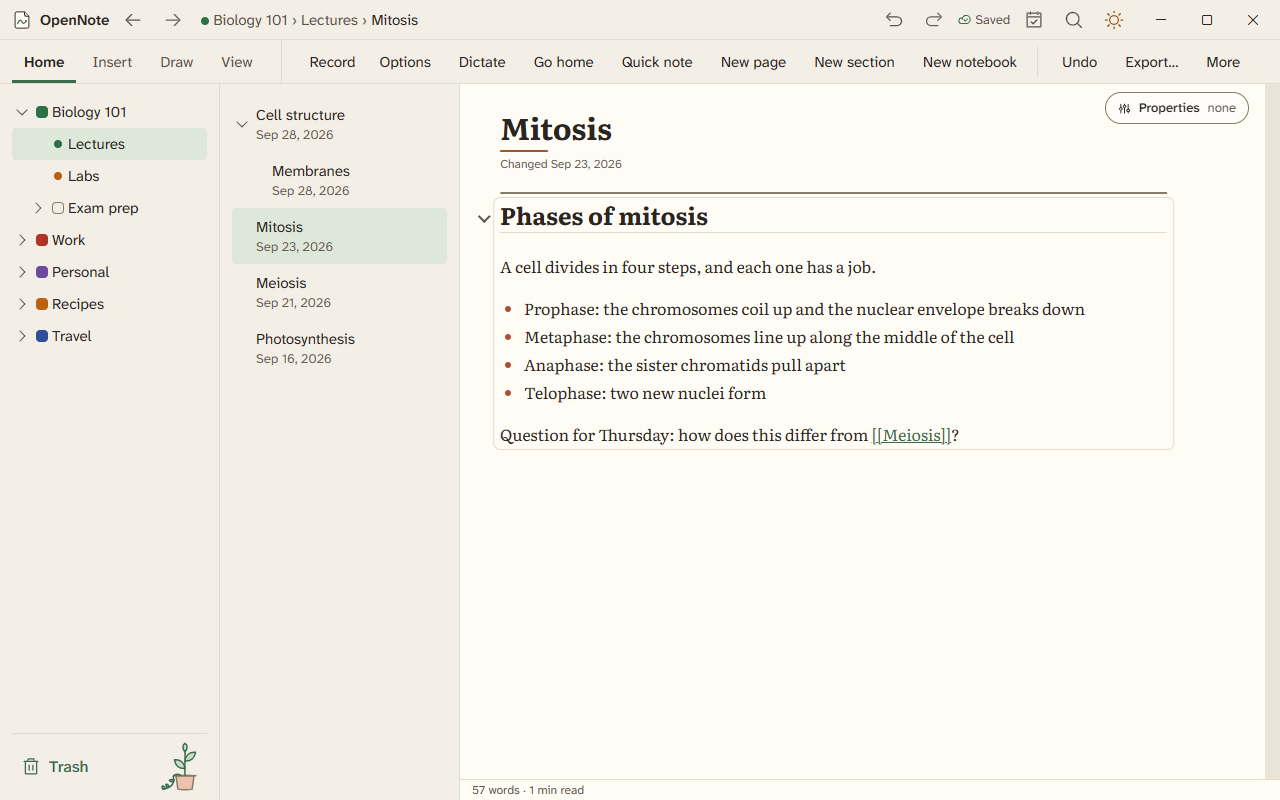
A page holds text boxes, headings, lists, checklists, quotes, code, callouts, tables, and pictures. This page covers the everyday keys and menus.
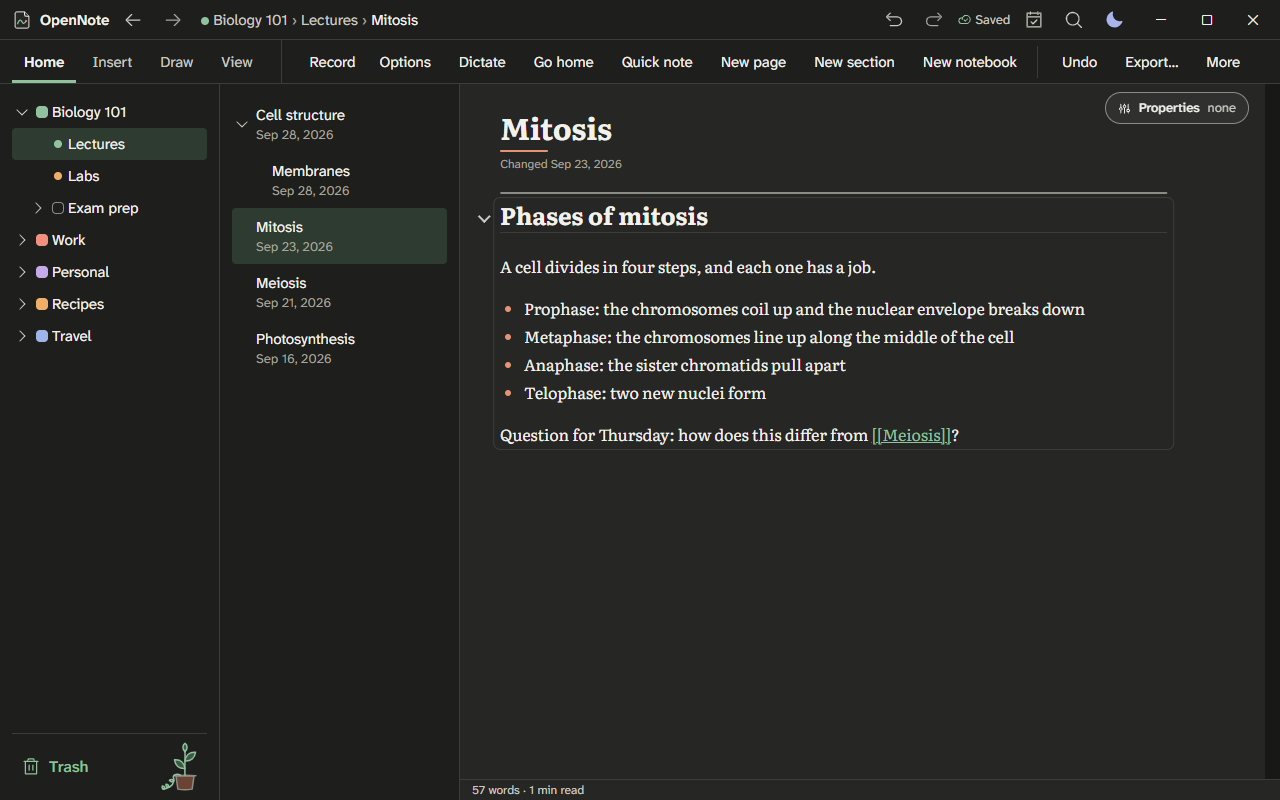
Light theme: workspace-light.png
| To do this | Do this |
|---|---|
| Insert a table, code block, callout, divider, or date | Type / on an empty line to open the slash menu. The Insert tab has the same items. |
| Make a heading | Press Ctrl+Alt+1, Ctrl+Alt+2, or Ctrl+Alt+3. |
| Make text bold | Press Ctrl+B. |
| Link to another page | Type [[ and pick a page. |
| Show another page inside this one | Type ![[ and pick a page. To show one paragraph, write ![[Page#^id]] with the paragraph ID you copied. When you export, the embedded text is included. |
| Paste with the structure and without stray fonts | Press Ctrl+V. Press Ctrl+Shift+V to paste plain text. |
| Paste a screenshot | Press Win+Shift+S, then Ctrl+V. |
Moving around without a mouse is in moving between blocks.
Press Ctrl+Enter to check or uncheck an item. Finished items move down, and the list shows a count. Choose Check all to finish a whole list.
| To do this | Do this |
|---|---|
| Find on the page | Press Ctrl+F. |
| Replace on the page | Press Ctrl+H. |
| See the word count and reading time | Press Ctrl+K and choose Word count. |
| Jump between headings | Press Ctrl+K and choose Contents. Select a heading to go to it. |
| Stop accidental edits and ink | Press Ctrl+K and choose Lock page. Choose it again to turn the lock off. |
| Make the caret easier to see | The caret follows the Windows text cursor settings: its thickness, its blinking, and the indicator color. Turn on Settings, Accessibility, Text cursor in Windows, or choose a width in OpenNote's settings. |
- Start a page from a template when you make it.
- Choose Next in series to make the next numbered page, such as the next lecture.
- Choose Show pages in this series to list every page of the series, oldest first, and open any of them.
- Press Ctrl+K and choose Markdown source to edit the page as Markdown. The page updates as you type.
- Lasso handwriting, or select blocks, and choose Extract to new page to move them out. A link takes their place; pictures and attachments stay. Select two pages and choose Merge pages, or choose Split at headings. Each one is a single Undo, and Page history gets an entry. Press Ctrl+Z straight away to undo it.
- Right-click a picture and choose Alt text to get a first draft you can edit.
- Choose Wrap on a picture to set text around it on a document page.
- Choose Size and position on a picture to type its size and how much to crop from each side. Reset crop puts the whole picture back.
- Drop a file, a PDF, or a link on the page to attach it. A Word file you edit and save comes back into the page.
- Documents, pictures, audio, video, and ZIP files open in their own app. Other files are shown in their folder, and programs and scripts never open from a note.
- A PDF or Office attachment shows its first page on the card. Right-click the attachment and choose Save a copy of the attachment to keep a file outside the note. The note keeps its own copy.
A misspelled word is marked. Right-click it for fixes. Select text, open the command palette, and choose Read aloud to hear it in a Windows voice. Nothing is sent anywhere.
The feature list has one sentence on every typed-note feature.
- In the Elements library, choose Move to put an element in another folder. Folders have Rename and Move too.
Turn on Check accessibility first in the Export, Print or PDF, or Send dialog. OpenNote then looks for problems such as images with no description before it writes the file. You can continue anyway, review and fix, or cancel. The choice is remembered.
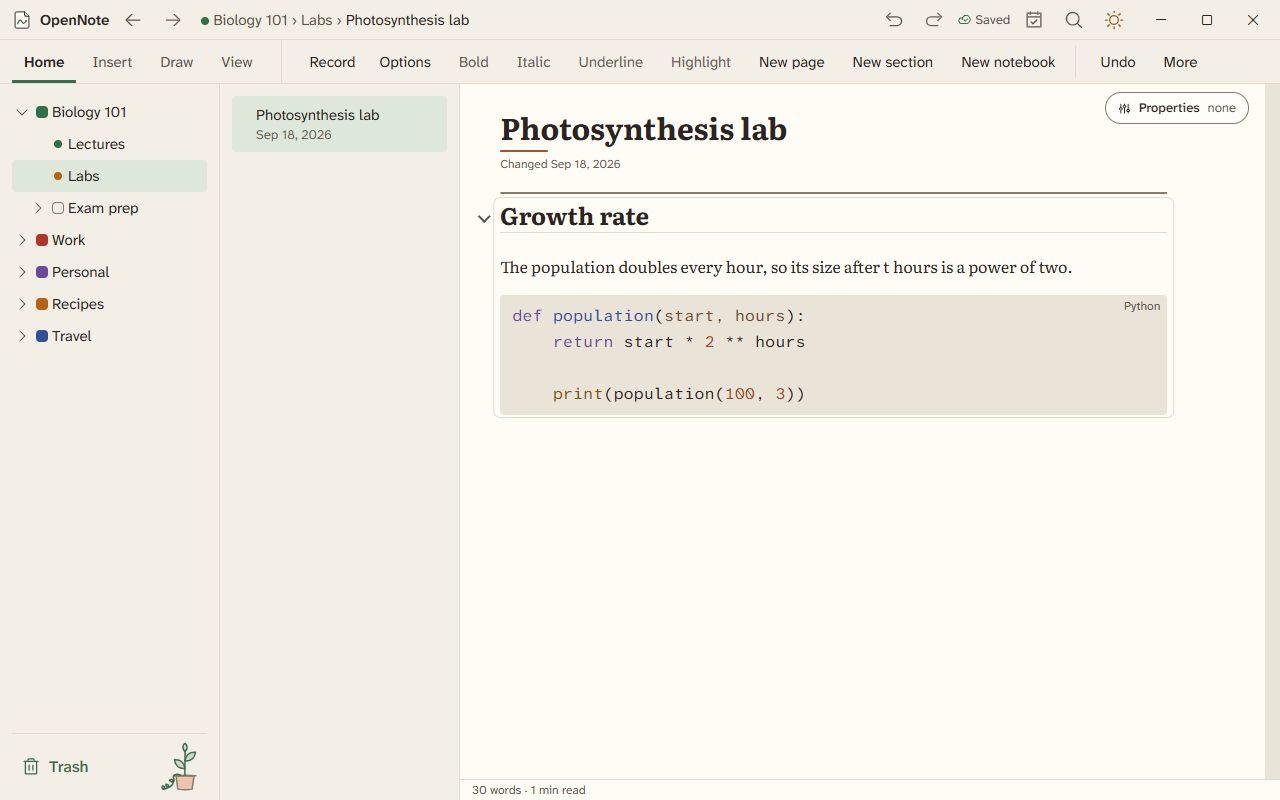
A page holds blocks: text, images, tables, and code. On a document page they stack from top to bottom. On a freeform page, text boxes sit wherever you put them. These keys move between them without the mouse.
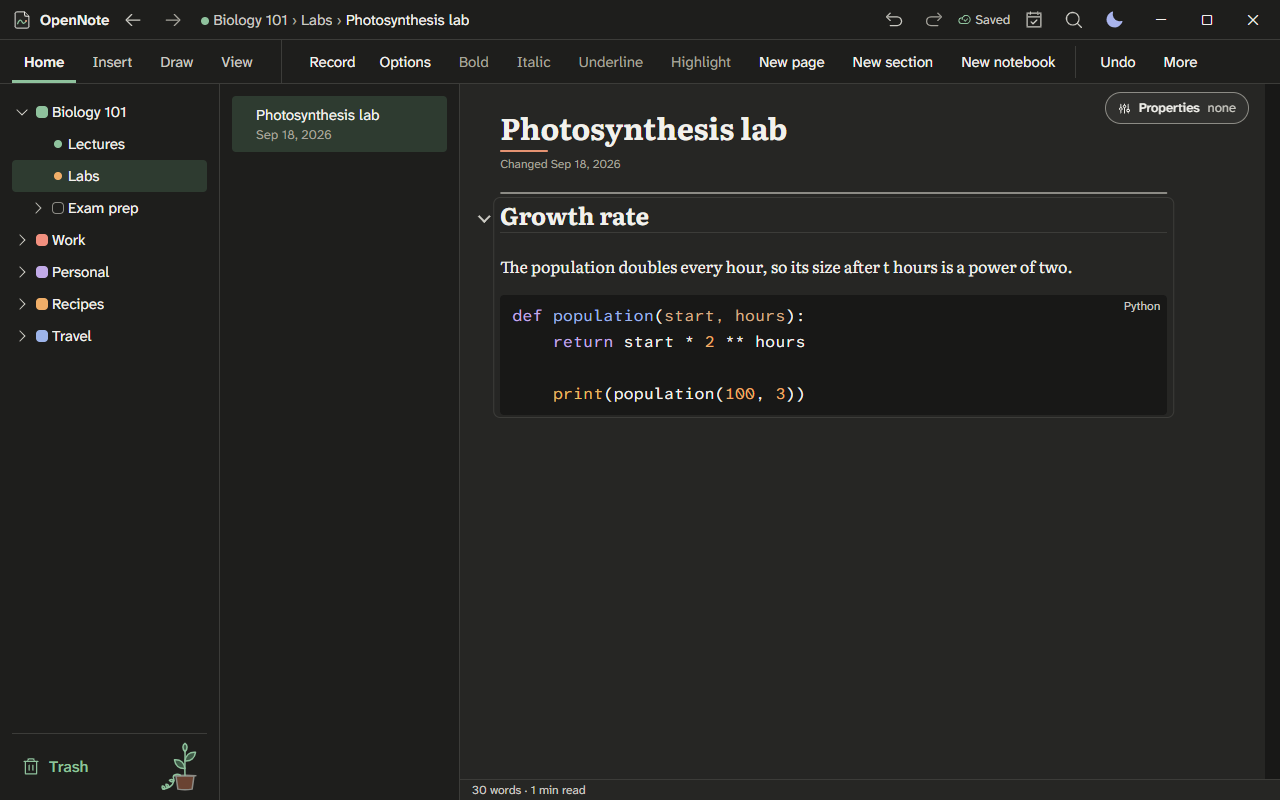
Light theme: block-code-light.png
| Key | What it does |
|---|---|
| Up Arrow on the first line, Down Arrow on the last | Moves to the block above or below, near the same place in the line. An image is selected as a whole. |
| Shift+Up Arrow or Shift+Down Arrow past the edge of a block | Selects this block and the next as whole blocks. OpenNote says how many are selected. |
| Backspace at the very start of a text block | Joins it to the text block above, or selects the image or table above. |
| Ctrl+A | Selects all the text in the block. Press it again to select every block on the page. |
| Delete, with blocks selected | Deletes them. Undo in the message that appears, or Ctrl+Z, brings them back. |
Arrow keys stay inside a floating text box. To leave it:
- Press Escape. The text box is selected as an object.
- Press Tab or Shift+Tab to go to the next or previous block in reading order.
With the box selected, the arrow keys nudge it, and Enter puts the caret back in its text. Screen readers announce "Press Escape, then Tab, to leave the text box" in every text box.
Tab stays inside the text, as it does in most editors:
- In a list, Tab indents the item and Shift+Tab outdents it.
- At the start of a paragraph, Tab turns it into a bulleted list item.
- Anywhere else, Tab types a tab character.
- In code blocks and tables, Tab keeps its own meaning: an indent in code, the next cell in a table.
| Key | What it does |
|---|---|
| Alt+Shift+Up Arrow, Alt+Shift+Down Arrow | Moves the list item, with its children, or the heading, with its section, up or down. |
| Alt+Shift+Right Arrow, Alt+Shift+Left Arrow | Moves a list item or heading one level deeper or one level up. |
| Alt+Shift+1 to Alt+Shift+9, Alt+Shift+0 | Shows the outline down to that level, or shows everything. |
Ctrl+Alt+= and Ctrl+Alt+- zoom the page, and Ctrl+Alt+0 goes back to 100%. Ctrl+= and Ctrl+- change the size of text in all of OpenNote instead.