Repository navigation
Code Cells
Write a short Python or JavaScript program on a page and run it there. Use it to check a worked problem, try Newton's method, or print a table of values. Code cells are in Beta.
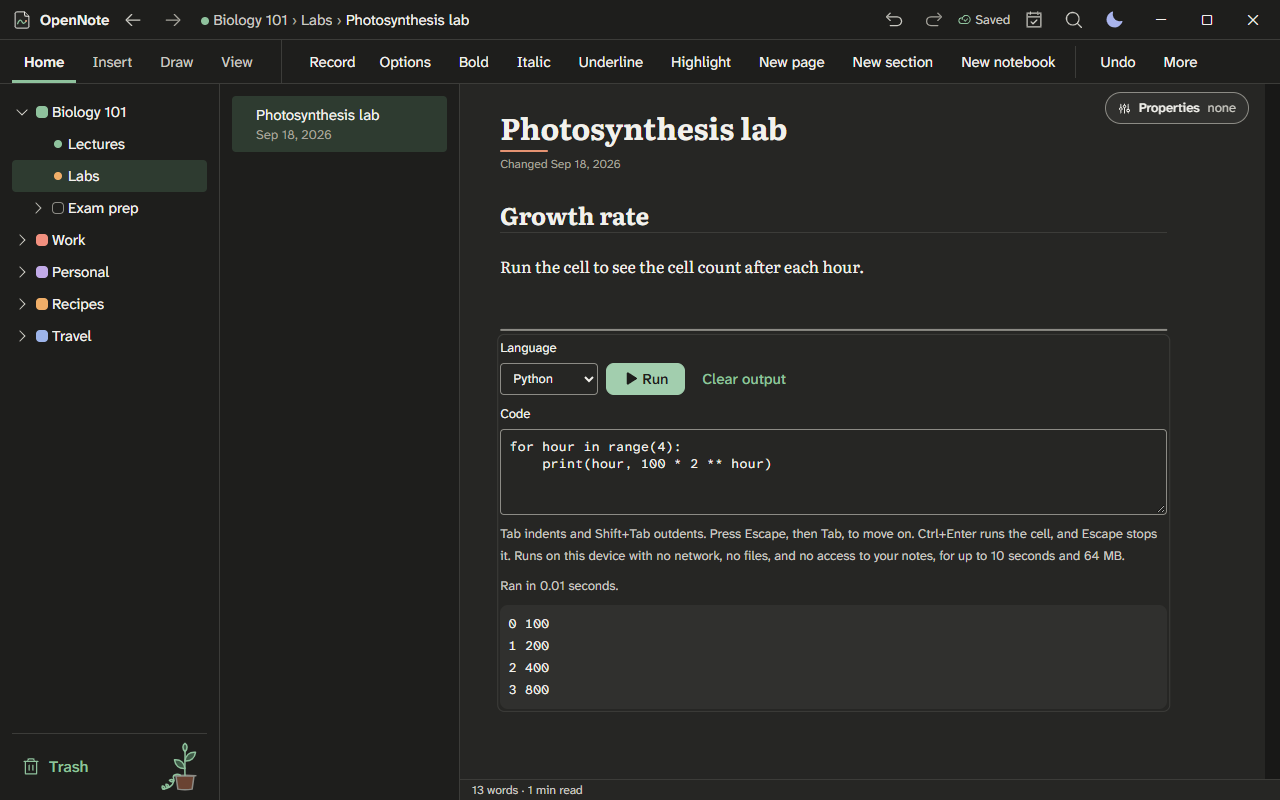
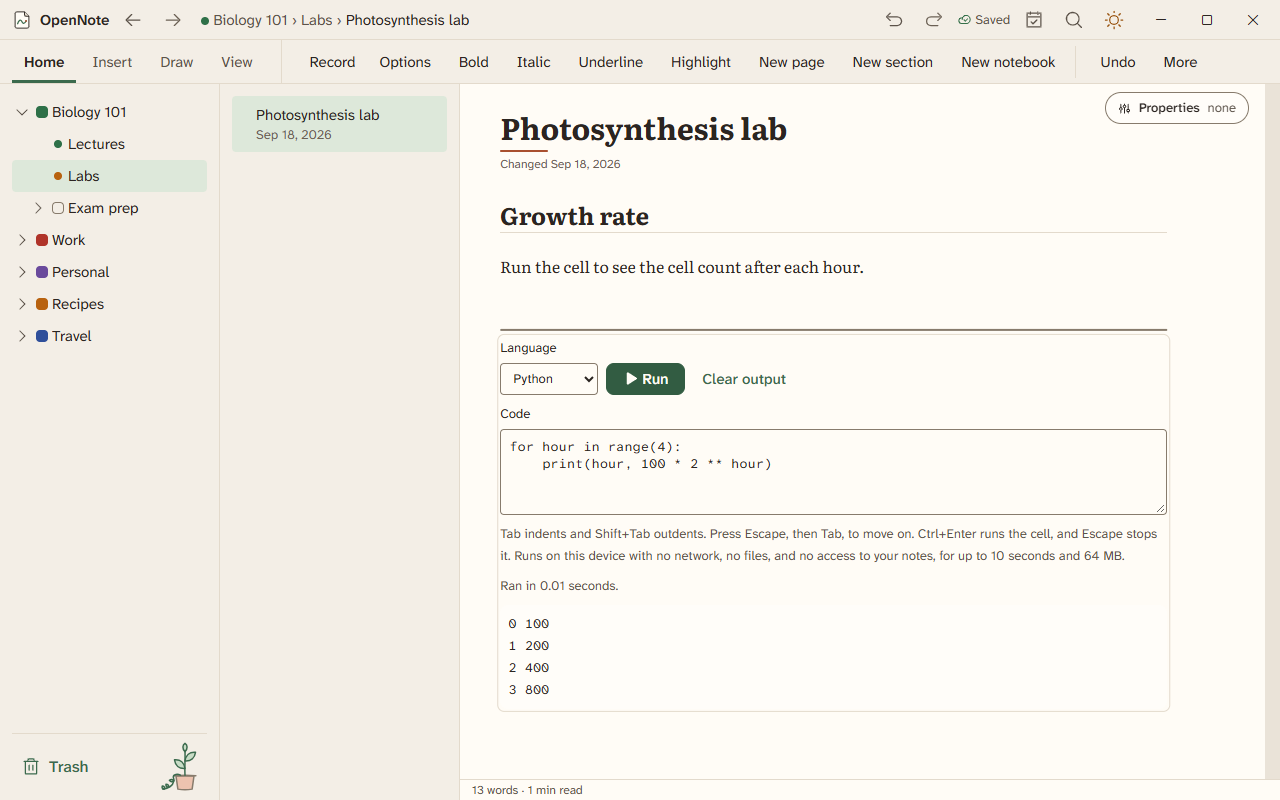
Light theme: code-cell-light.png
- Open Insert, then Code cell. Or type
/code cellin text, or press Ctrl+Alt+Shift+K. The command palette (Ctrl+K) finds it too. - Choose Python or JavaScript from Language. The cell starts with an example you can change or delete.
- Write your code in the Code box. Tab indents and Shift+Tab outdents. To move on with the keyboard, press Escape, then Tab.
- Press Run, or Ctrl+Enter in the code. What the program prints appears under it, and errors show in red.
- In JavaScript, use
console.logorprint. The value of the last line is shown after an arrow. - In Python, use
print. Python cells use MicroPython, which has most of the language and modules such asmath,random,json, andre. It has no NumPy, and noasyncio.runorinput. - Press Stop, or Escape in the code, to end a run. Clear output removes what was printed.
- Code runs only when you press Run. Opening a page, or a page someone shared with you, never runs it.
Each run starts in a sandbox of its own, on this device, and works offline.
- It has no network, so it cannot download or send anything.
- It cannot open your files or your notes, and cannot change the page or the app. A Python cell's
openworks only on a short-lived, empty in-memory disk. - It stops after 10 seconds and when it uses more than 64 MB. The first 100,000 characters of output are kept, and the cell says when the rest was cut.
- A function that calls itself without end stops with a stack overflow error.
- Nothing is kept from one run to the next. The page saves the code, not the output.
The code studio has runtimes for more than one engine. Each one runs in the same sandbox as a cell.
- Quick Python is MicroPython, as above.
- Full Python is CPython 3.14 (Pyodide), with the standard library. It loads from the app's own pack, not from the internet. Its code cannot reach JavaScript or the app. Imports and project files work inside the project folder only.
-
JavaScript and TypeScript run in QuickJS. TypeScript types are removed before the run. A project can mix
.jsand.tsfiles and import between them. Modules come from the project folder only, and bare package names are not available. -
Tests. JavaScript and TypeScript runs can use a Jest-style
describe,it, andexpect. Each test shows as pass, fail, or error, with the line of the failing check. - Random numbers can take a seed, so a run gives the same numbers each time.
The code editor checks your code as you type, and offers help without a model.
- Errors and warnings. Brackets that do not match, and a Python header with no colon, are marked at once. Python, JavaScript, TypeScript, C, C++, Lua, and other languages get checks for names that are not defined, unused names, and some common mistakes.
- Completion. Type a few letters, or press Alt+\ to ask for the list. The list has names from the scope you are in, members after a dot, keywords, snippets, and words in the file. Recent picks rank higher.
-
Ghost text. A gray line shows the likely next line, for example a repeated pattern, a counted loop, or a
__main__guard. Press Ctrl+Tab to accept it. Keep typing to ignore it.
A code cell exports as a code block with its language, in Markdown, PDF, and web page exports. Search finds the code.
Code studio runtimes and editor help are built and have been checked by automated tests. Full Python and the JavaScript runtimes have not yet been tried by hand in the built app.