
Test devices, entities and realistic test data for Home Assistant – on demand, reproducible, and fully removable.


Warning
This integration is meant for test environments only, never for an instance with real devices. Everything it creates carries a marker and can be removed again, completely, without touching anything else.
| 🏭 Devices from templates | Plug with metering, wall button, climate, motion and contact sensor, dimmable light, blind, radiator thermostat, washing machine, or your own entity definitions. Up to 500 devices per call. |
| 📈 Signal curves | Constant, sine, saw, square, triangle, noise, random walk, counter, daily profiles, steps, battery discharge, enum, state machine, CSV replay. Always a function of time and seed, so the same seed gives the same values. |
| ⏱️ Schedules and scenarios | Run actions at fixed times, intervals, once, at random moments or by Poisson rate; chain steps to scenarios. |
| 💥 Fault injection | unavailable, dropout, frozen, spike, battery_low, linkquality_drop, and late / duplicate for MQTT. |
| 📡 Outputs | Native entities, MQTT discovery, or a full Zigbee2MQTT bridge emulation including groups. |
| 🪞 Follow a real device | Create copies of a real device with a seed based deviation (new in 1.2). |
| 📜 Live Log | Every state change of the generated entities, live, over all outputs (new in 1.2). |
| 🕰️ History and time lapse | Backfill up to 365 days of statistics; run daily curves faster. |
| 📦 Transfer | Export and import devices, templates, schedules, scenarios and groups as one JSON file. |
| 🧹 Clean removal | Works from markers; foreign devices, entities, areas, statistics and MQTT topics are never touched. |
The integration is part of the HACS default store, so no custom repository is needed.
Click the button above to open the integration in HACS on your Home Assistant instance, or find it yourself:
- Open HACS and search for HASS Test Data Creator.
- Open the entry and click Download, then restart Home Assistant.
- Go to Settings → Devices & services → Add integration and add HASS Test Data Creator. Confirm that this is a test environment.
- Open Test Data Generator in the sidebar (administrators only).
The panel in the sidebar of Home Assistant (admin only). The images are rendered with demo data by npm run screenshots in panel-src.
| Devices | Device details |
|---|---|
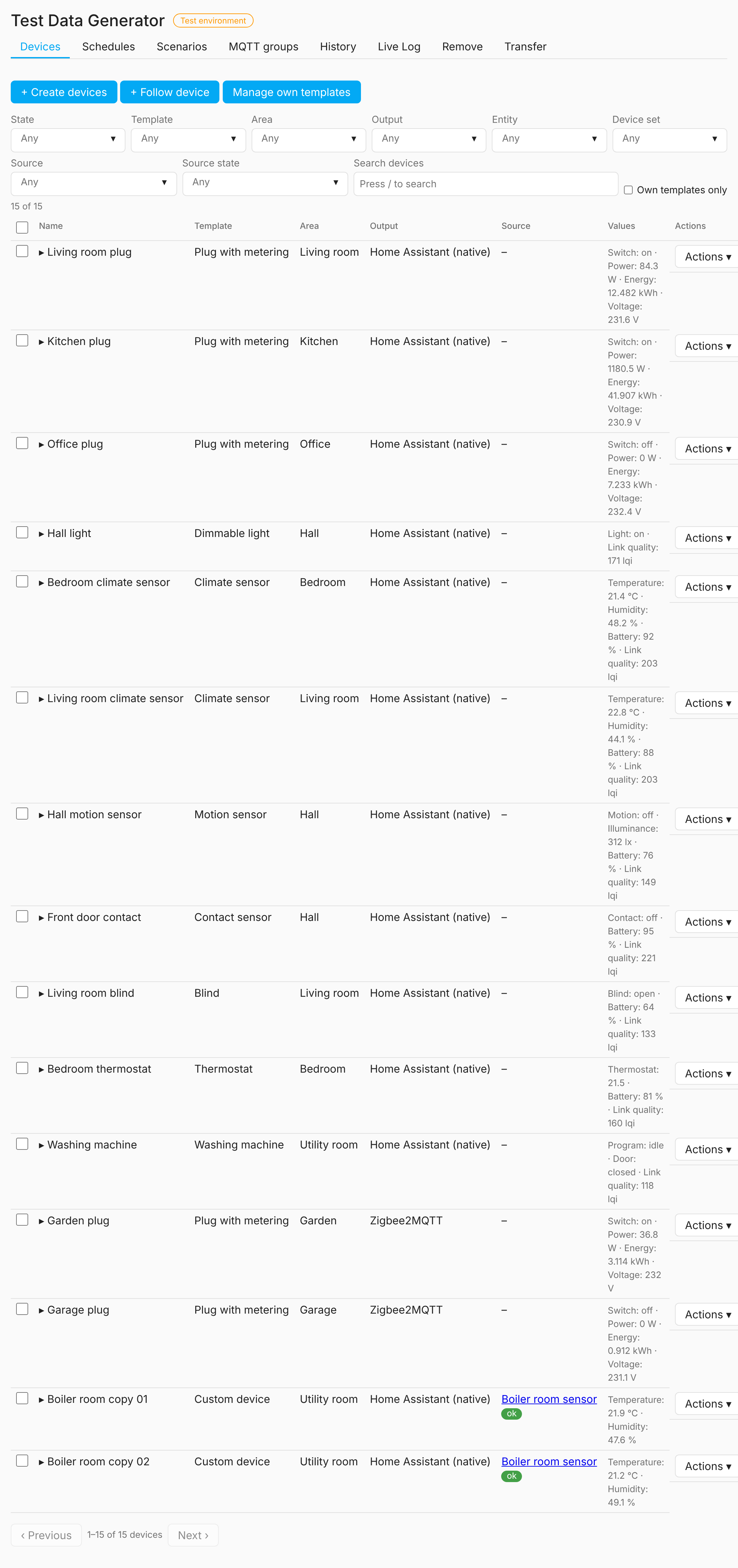 |
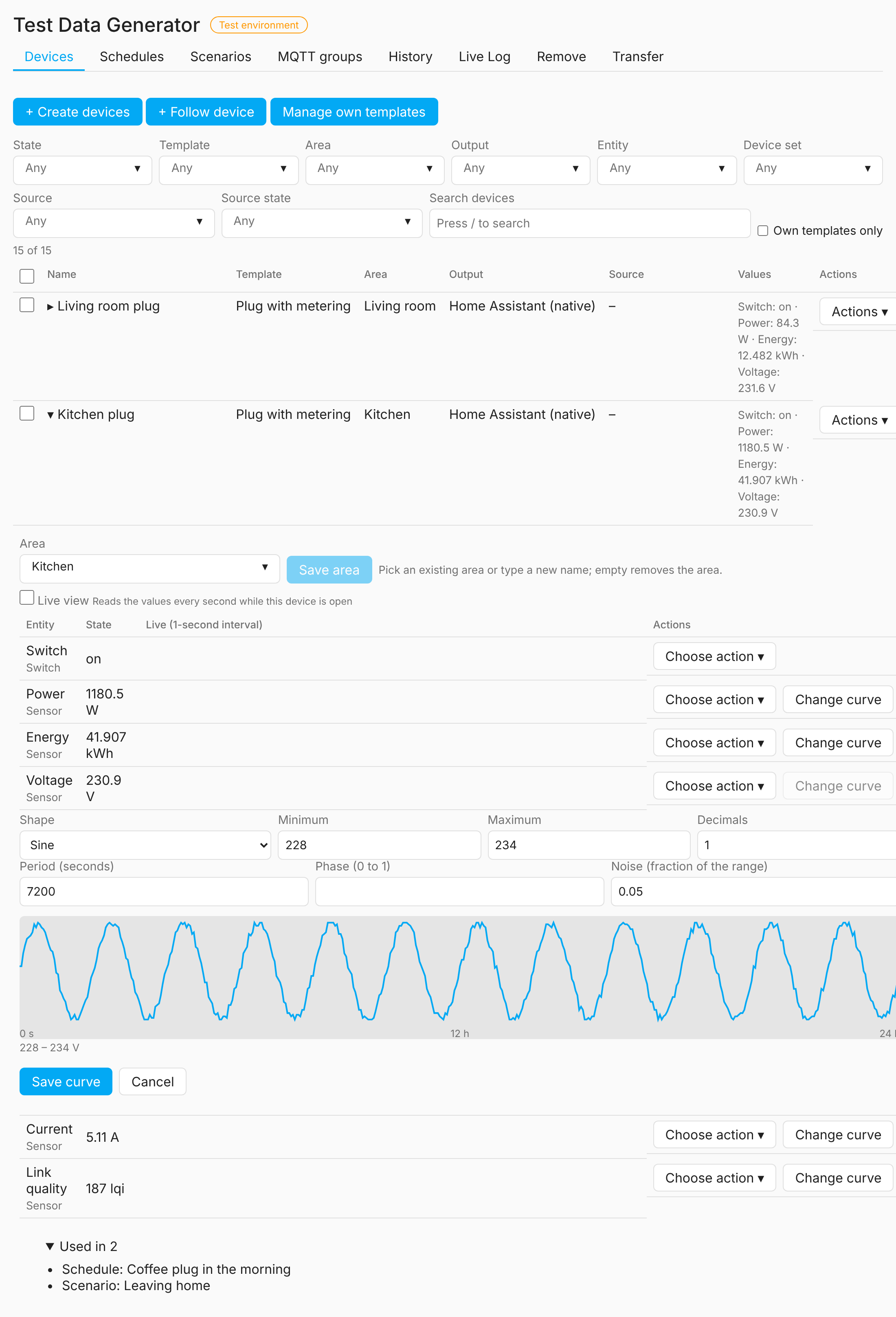 |
| Create devices | Custom device with entity editor |
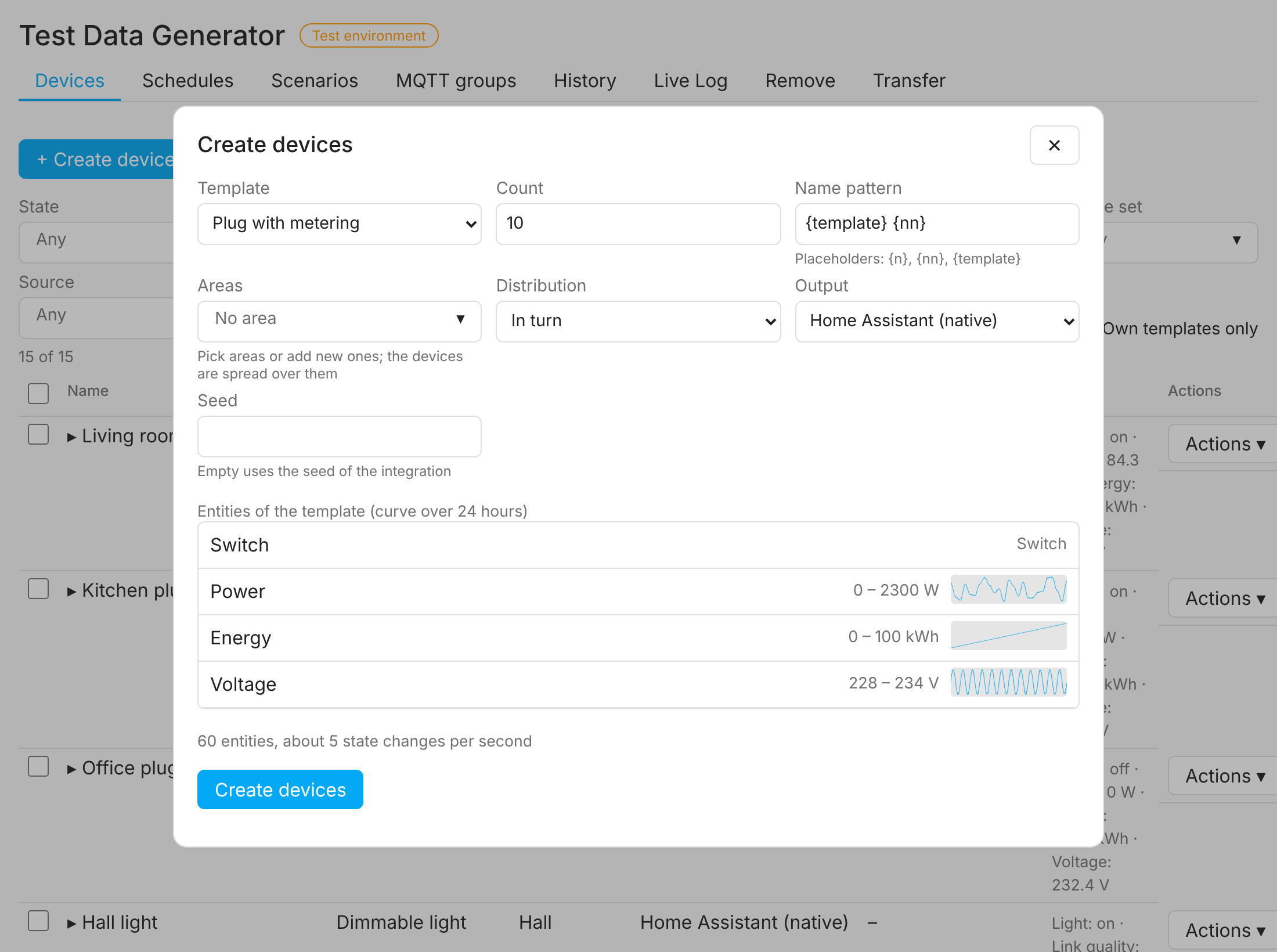 |
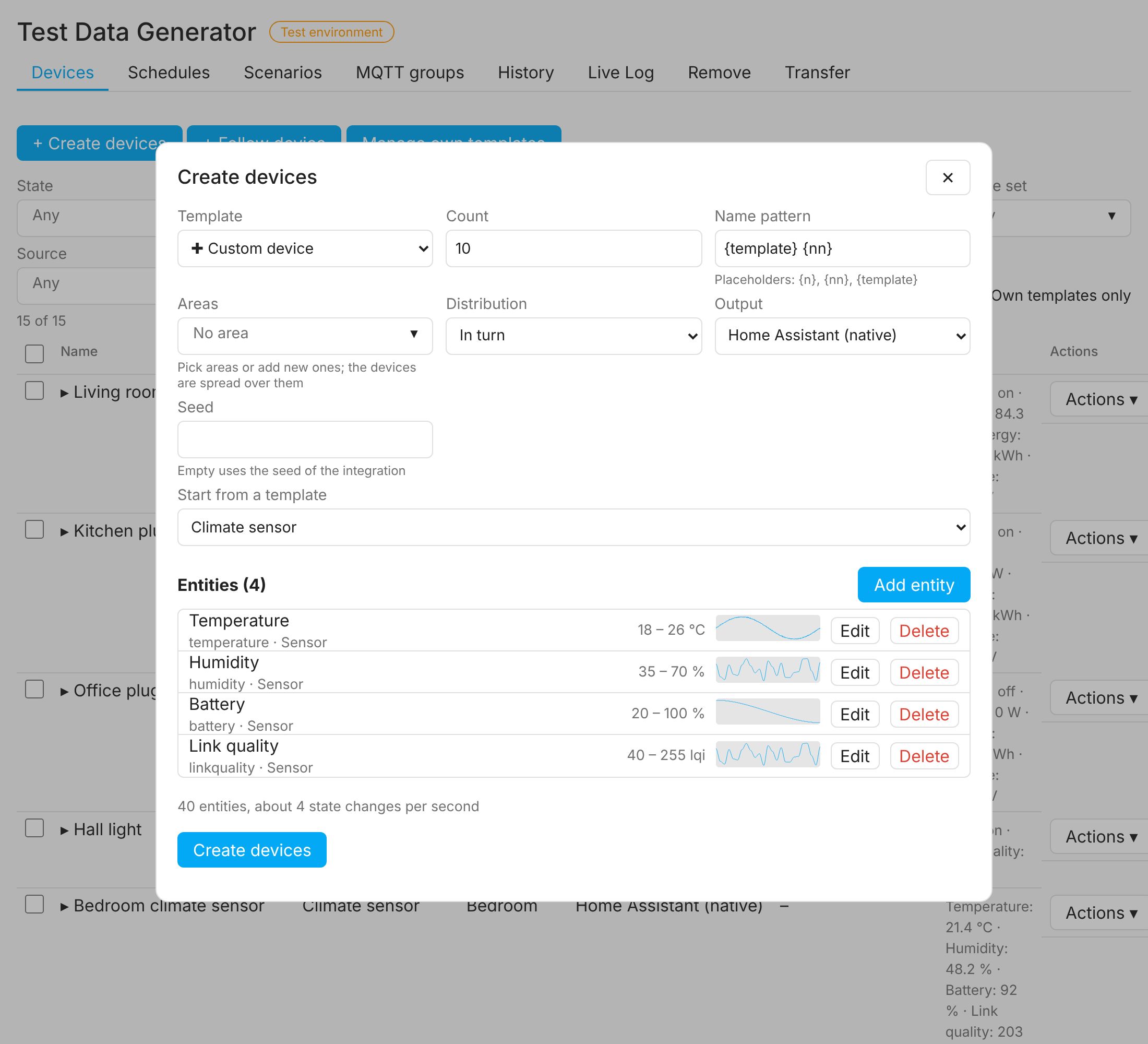 |
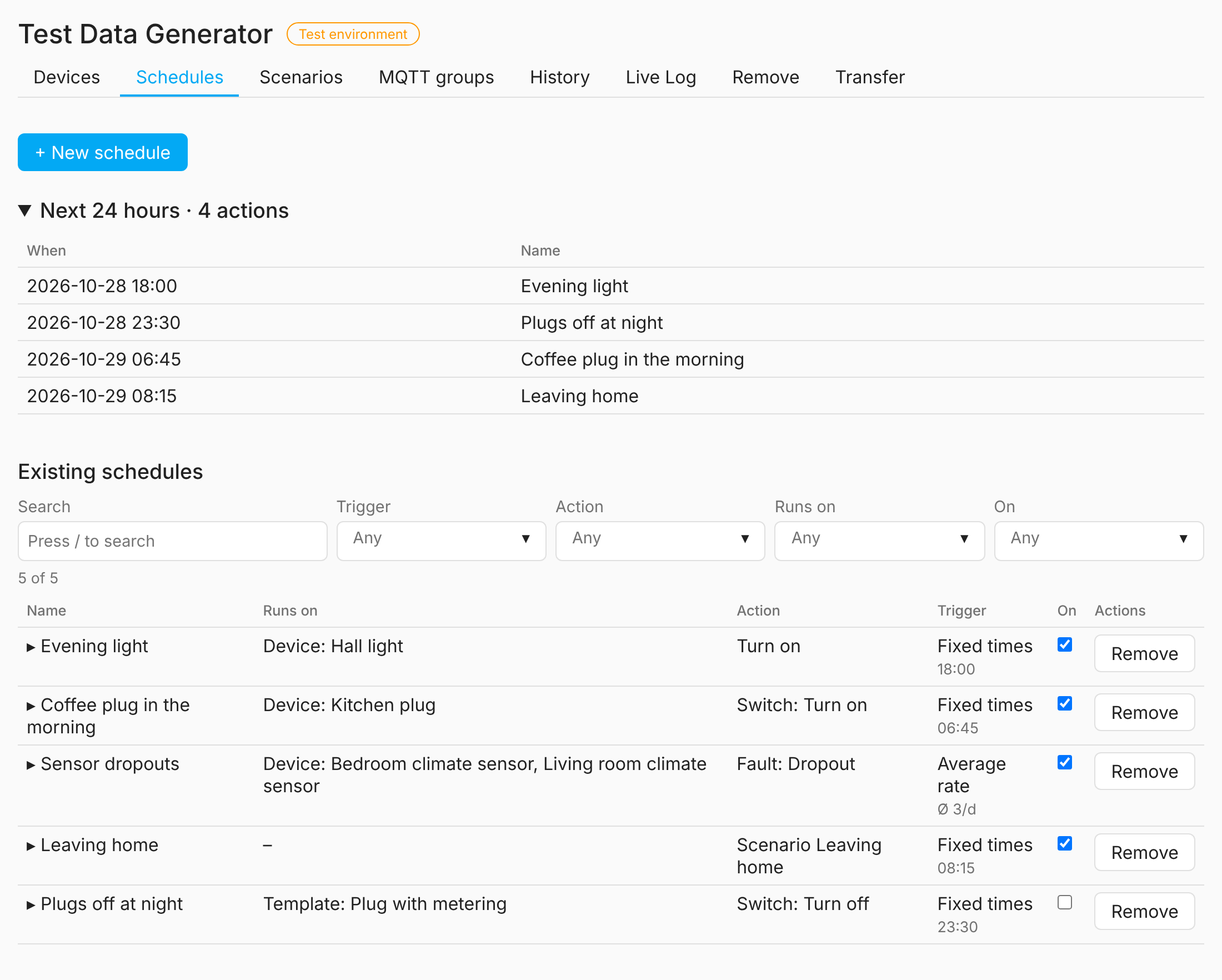
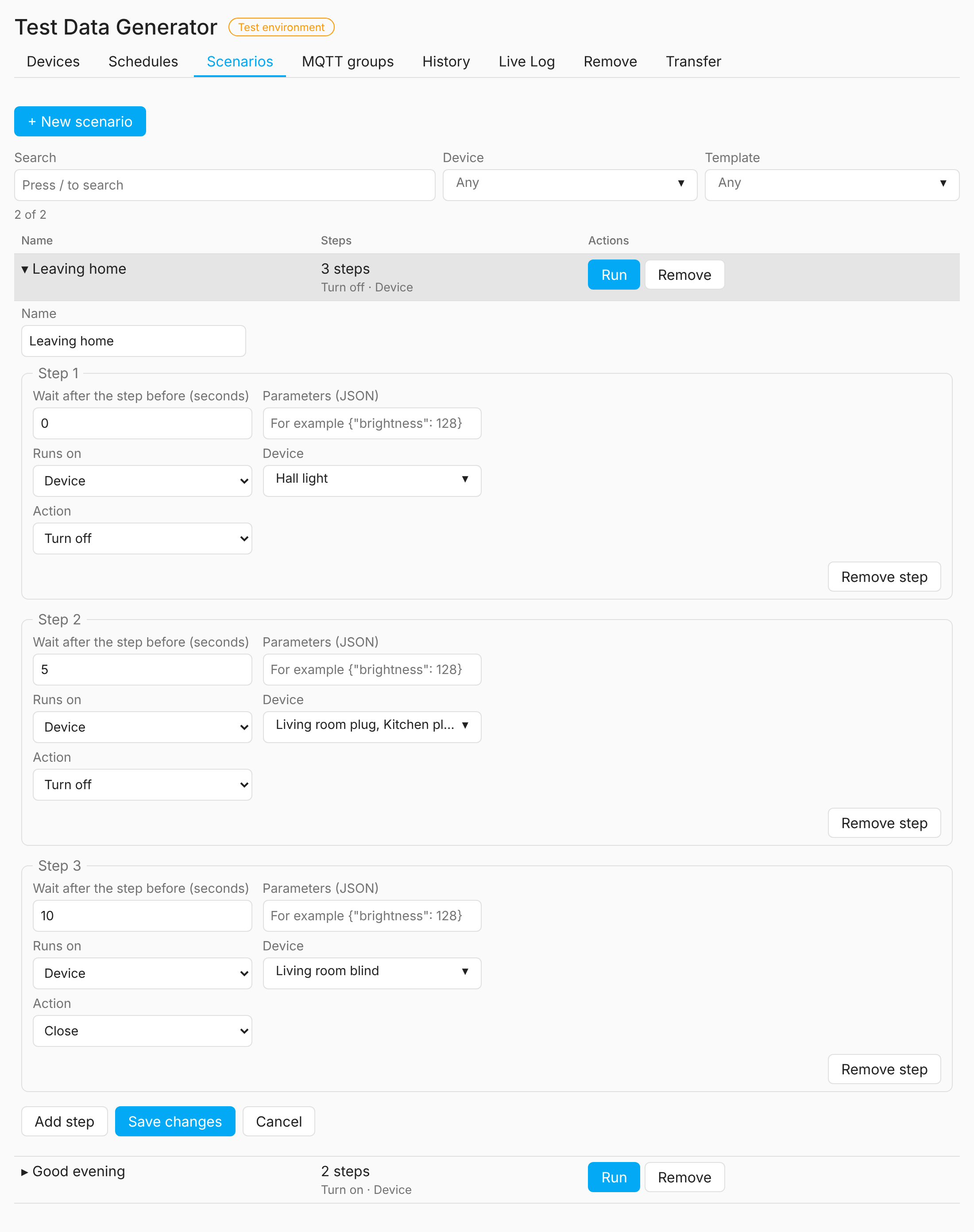
| Schedules (next 24 hours) | Scenario with steps |
 |
 |
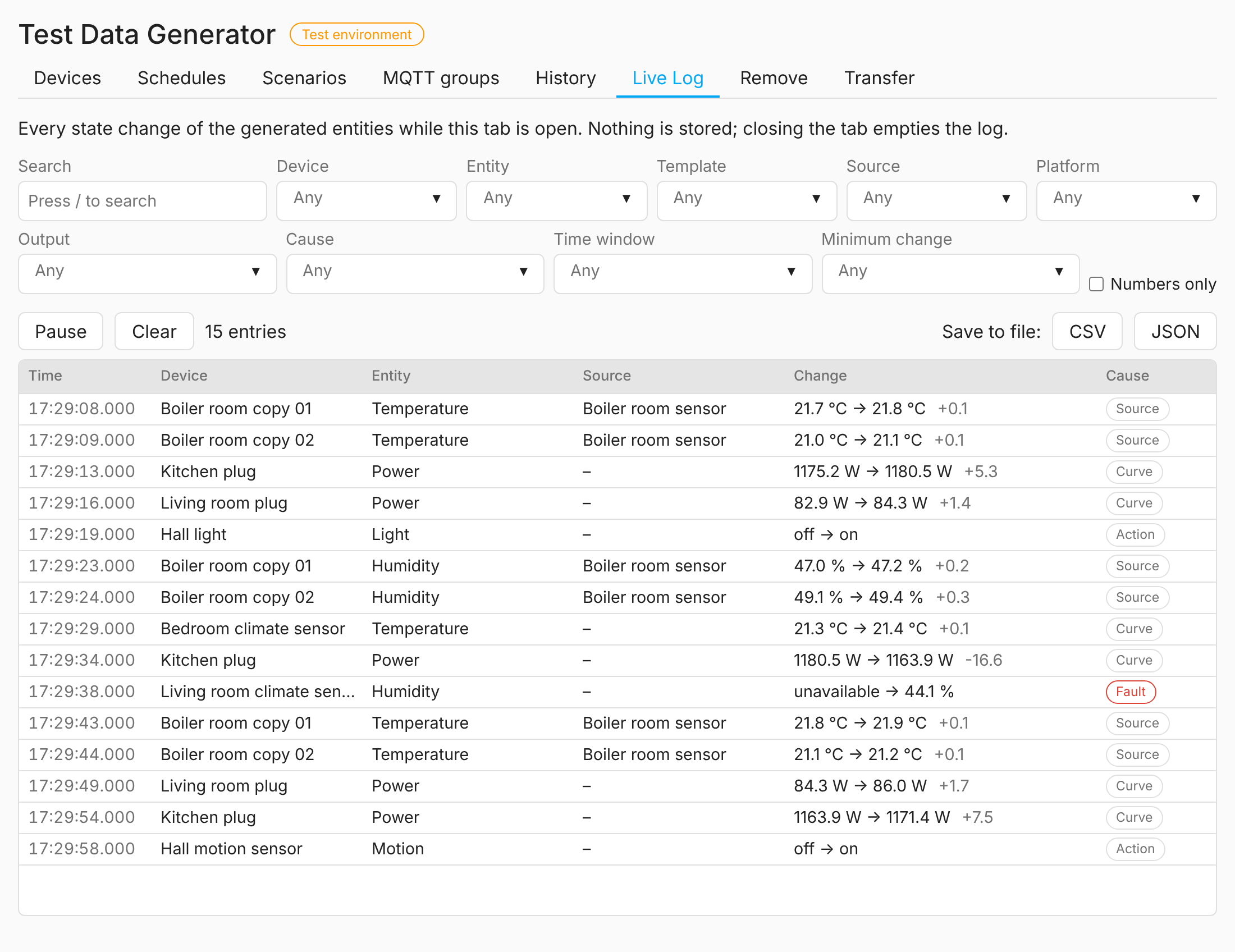
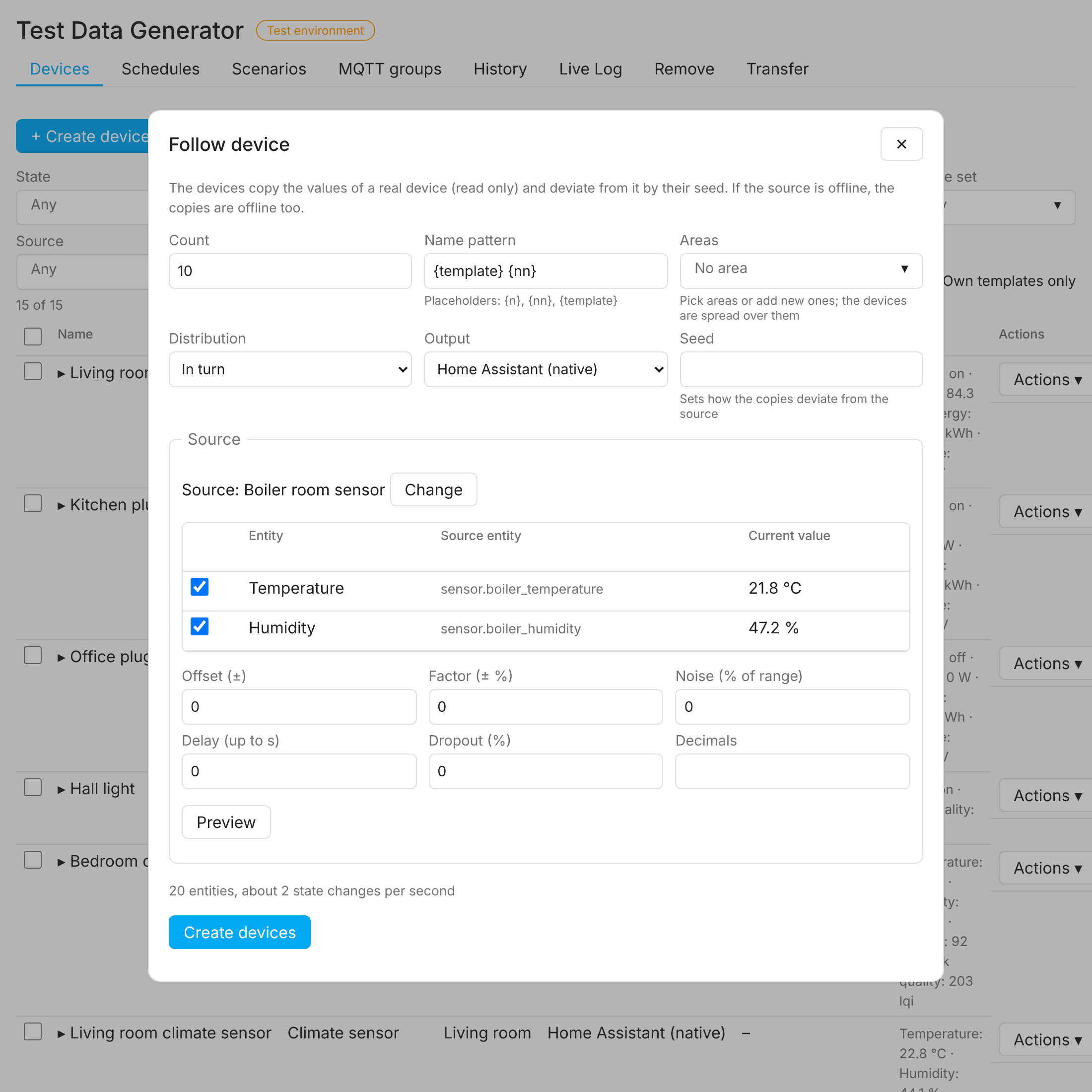
| Live Log (1.2) | Follow a real device (1.2) |
 |
 |
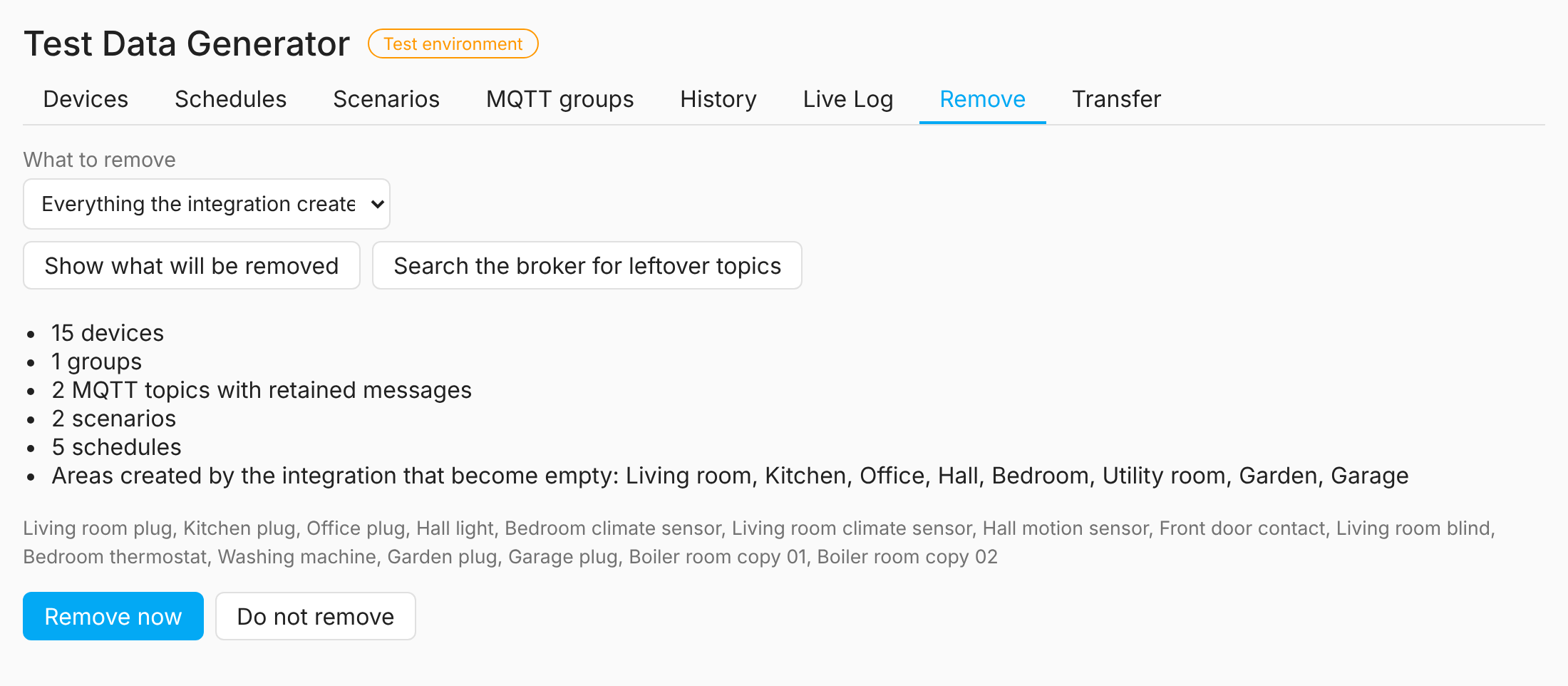
More screenshots: own templates, new schedule, MQTT groups, history, removal
 |
 |
 |
 |
 |
Open a section to read the details.
🏭 Devices, templates and entities
- Create many devices at once from templates (plug with metering, wall button, climate sensor, motion sensor, contact sensor, dimmable light, blind, radiator thermostat, washing machine) or from your own entity definitions.
- Assign the devices to areas on creation.
- For a custom device the create dialog has an entity editor instead of a JSON field: "Add entity" opens a form (name, key, platform, unit, curve), and each entity in the scrollable list can be edited or deleted. "Start from a template" copies the entities of a template into the editor after a warning that it replaces the current ones.
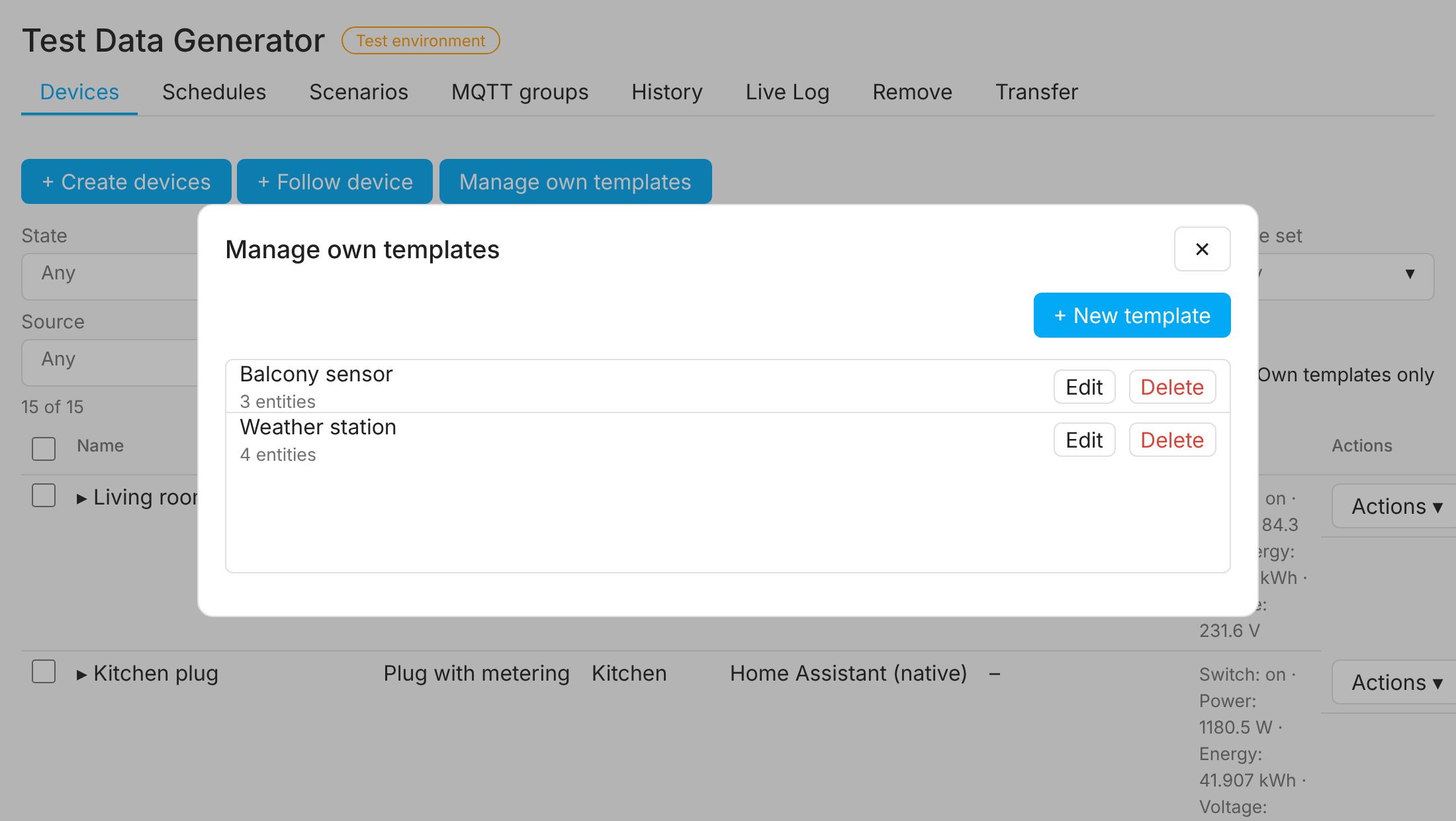
- Own templates are managed with "Manage own templates" next to "+ Create devices" in the Devices tab: a popup lists them with "Edit" and "Delete" and "+ New template" opens the form (name, optional start from a template, entity editor). They appear in their own group of the template dropdown of the create dialog. Built-in templates cannot be changed or deleted. Own templates are stored as YAML files in
<config>/hass_test_data_creator/templates/(up to 200). - The create dialog lists "Custom device" last in the template dropdown (highlighted) and shows all entities of the chosen template (sensors with value range, unit and a small 24-hour curve) in a scrollable list.
- Value curves: constant, sine, saw, square, triangle, noise, random walk, counter, and the daily profiles
household_loadandpv_day, a staircase (steps), a batterydischarge, and the state shapesenum(states drawn by weight) andstate_machine(a cycle of states with durations, as in thewashertemplate). Every curve is a function of time and seed, so the same seed gives the same values. - Values come from signal curves with a range from–to and a unit (sine, saw, square, triangle, noise, random walk, counter).
🖱️ Panel: device list, details, bulk actions
- The Devices tab offers the main action of every entity, such as toggling a switch, and "Remove" in one "Actions" menu, and turns into a grid of cards on narrow screens such as a phone; the schedule, scenario and group tables do the same. Click a device to open its details: change its area (an existing one or a new name; an area the integration created goes when it is empty), and run every action of every entity by hand from one "Choose action" menu; actions with a number (brightness, position, target temperature) and faults with a duration ask for their value first. A sensor with a number curve gets a "Change curve" button that opens the curve editor with a live preview; the new curve replaces the old one at once. A sensor with states (
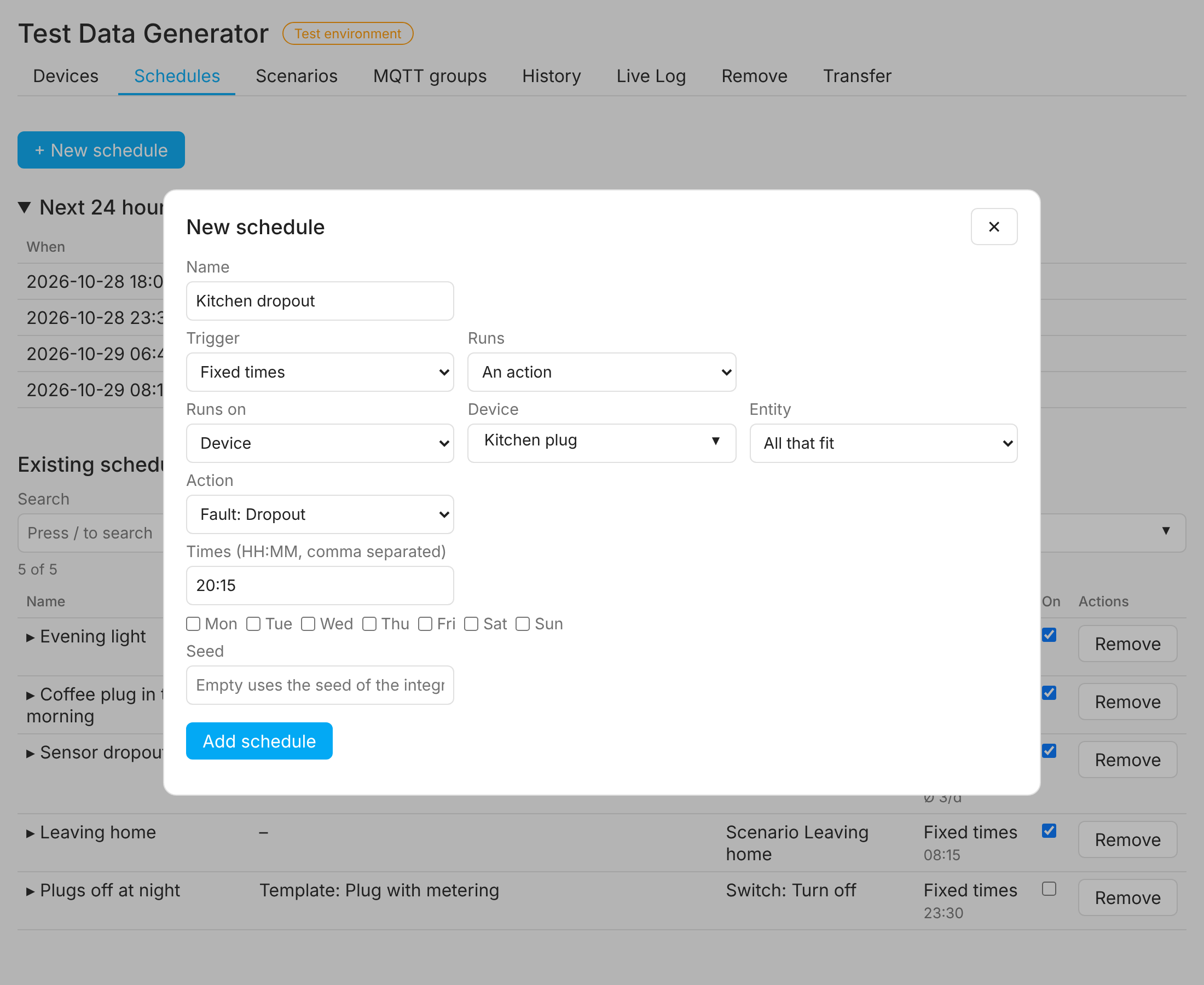
enum,state_machine) keeps its states, and a number curve cannot become a list of states. The switch "Live view" in the details reads the device every second and draws the real values of its numeric entities as a curve under the state; it is off whenever a device is opened. - The Schedules tab shows the form for a new schedule first, then the preview of the next 24 hours, then the list. Click a schedule to change it in the same form (name, target, action, trigger, scenario); the change replans the runs at once. The WebSocket command
schedules/updatedoes the same. - Devices are created in a popup of the Devices tab (the button "Create devices"), and so are schedules in the Schedules tab ("New schedule"). The area of a creation job is picked from a multi-select dropdown (the areas of Home Assistant, and new names you add).
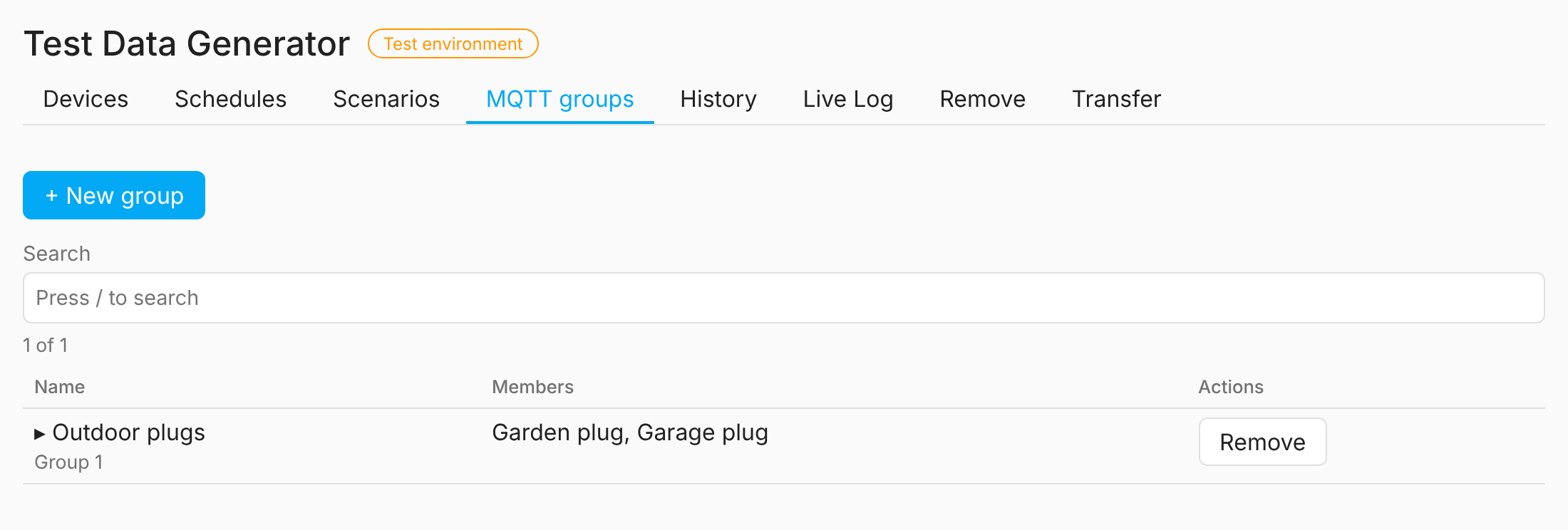
- Scenarios and MQTT groups work like schedules: a button opens a popup for a new one, and a click on a row changes it. The members of a group are picked from a multi-select of the Zigbee2MQTT devices; renaming a group deletes its retained state under the old name. The WebSocket commands
scenarios/updateandgroups/updatedo the same. - The details of a device end with a collapsible list of where it is used: the schedules, scenarios and MQTT groups that name it. As long as a device is used it cannot be removed (error
TDC-REM-002; "Remove" is greyed out and the removal tab names the users). A target by template, creation or all devices does not count, and "Remove everything" is never blocked. - The History tab picks one or several devices, and one sensor, from lists;
import_historytakes the same: a device, or a list of devices. - The MQTT discovery and Zigbee2MQTT outputs and the MQTT groups tab are offered only while the MQTT integration is connected to its broker.
- The action of a schedule or scenario step needs no entity: without one it runs on every entity of each targeted device that can do it ("Aussetzer" on all sensors, "Umschalten" on the switch). The forms offer only the actions that every targeted device can do, so a dimming action is not offered for "all devices" while plugs are among them. The History tab offers only the sensors that every chosen device has. The optional
entityofadd_scheduleand of a scenario step names one entity if needed; the forms show an "Entity" select next to the target only for a single device or template when the action fits more than one of its entities (default "All that fit"). A select with only one option is preselected and locked (for example "Runs" in the schedule form while no scenario exists). - A target of an action, schedule or scenario step can name one device, several devices (
target: {device: ["Plug 01", "Plug 02"]}), a template or one device set (the devices of one creation job). The forms offer the devices, templates and device sets to pick from, and only the actions and entities that fit the chosen target. Removing devices removes a schedule only when all the devices it names are gone. - "Duplicate…" in the Actions menu of a device (and the command
hass_test_data_creator/devices/duplicate) creates one or up to 500 copies as a new run: same template, model, output, area and curves (including changed ones), new ids and seeds, names by a pattern (default<name> 1,<name> 2, …). The device limits apply; the copies can be removed by their run like any other devices. - Sidebar panel in German and English with a schedule tab (list, create, switch on or off, remove, preview of the next 24 hours) a scenario tab (list, create with several steps, run, remove) and a curve editor for custom sensors (shape, range, period, noise, with a live preview of one day); services for scripts.
- Search, filter and sort the device list: filter by template, area, output, entity kind, device set, own templates, faults, state (paused) and whether a device is used, and sort by clicking the column headers (ascending, descending, off).
/jumps to the search,Escresets the filter, and a reset link shows when nothing matches. The filter runs in the backend, so the counter and the paging are right for any number of devices. The lists of schedules, scenarios and groups have the same filter bar (for schedules trigger type, action, target kind and on or off, for scenarios the devices and templates in their steps); the filter is kept while the browser tab is open. - Bulk actions on the device list: tick single devices, a whole page or "all N matches" of the filter, then set the area, add them to a Zigbee2MQTT group (with MQTT), run an action, pause or resume them, or remove them. A removal shows the number first and, above 100 devices, asks for a checkbox; devices that a schedule, scenario or group still names are not removed. The WebSocket commands are
devices/bulk_remove,devices/bulk_area,devices/bulk_group,devices/bulk_actionanddevices/bulk_pause. - Pause and resume: a paused device keeps its last values and sends nothing new until it is resumed; schedules and scenarios skip it, manual and bulk actions still work. Use "Pause" or "Resume" in the actions menu of a device, or the buttons of the bulk bar, and the state filter "Paused" to find paused devices. The pause is stored and survives a restart.
⚡ Actions, schedules, scenarios and faults
- Trigger actions by hand: switch, press a button, set or pulse a binary sensor, dim a light (
set_brightness0 to 255), move a blind (open,close,set_position0 to 100), set a thermostat (set_temperature,turn_on,turn_off). A blind moves at once. Wrong parameters give errorTDC-SCH-006. - Run actions by schedule: at fixed times, every N seconds, once, at random moments inside a window, or at an average rate (Poisson). Random times follow a seed, so the same seed gives the same day.
- Scenarios: a named list of steps, each with a target, an entity, an action and
after_s, the wait after the step before. Start one by hand, from the scenario tab, or from a schedule (scenario: <id>instead of target, entity and action; the schedule form of the panel has a "Runs" select). - Inject faults for a limited time, by hand or by schedule:
unavailable,dropout,frozen,spike,battery_low,linkquality_drop, and for the MQTT outputslateandduplicatemessages. The device list shows active faults.
📡 MQTT and Zigbee2MQTT outputs
- Publish the devices over MQTT discovery instead (output
mqtt, base topictdc): Home Assistant creates the entities through its MQTT integration, values follow the curves, commands and faults work, and a removal deletes the retained messages. The devices that Home Assistant creates for them carry the label "test data" like the native ones. MQTT must be set up and connected. If the storage of the integration was lost, the removal tab can search the broker for leftover retained topics of generated devices (own base topics and the discovery topicshomeassistant/<component>/tdc_<id>/<key>/config; never the defaultzigbee2mqttbase topic) and delete them. - Publish the devices as a Zigbee2MQTT bridge instead (output
z2m, base topictdc_z2m):bridge/state,bridge/info,bridge/deviceswith exposes, one JSON state per device, availability,<name>/setand button actions. Groups of such devices (add_group,remove_group, the MQTT groups tab) are listed inbridge/groups, publish a state derived from their members and passseton to every member. It refuses a base topic that already carries retained messages it did not publish (it listens for 3 seconds, 10 onzigbee2mqtt) or a name that a Zigbee2MQTT device or group already has (TDC-OUT-008) and device or group names that are no single topic level (no/,+,#, control character, notbridge,TDC-OUT-007). The base topics are set in the options of the integration.
🕰️ CSV replay, time lapse and history
- CSV replay: the shape
csvplays a file from the folderhass_test_data_creator/csvof the Home Assistant configuration, looped and joined linearly. A file has one column (one value perstep_sseconds, default 60) or two (seconds, value; the seconds must rise); blank lines, lines that start with#and a first row of names are skipped, and the delimiter is,or;(then a comma is the decimal mark). Signal block:{shape: csv, file: load.csv, step_s: 60, min: 0, max: 100, decimals: 1, phase: 0}. A file is limited to 100000 rows and 5 MB; a file that does not fit is refused with TDC-SIG-005, a missing one with TDC-SIG-004. The curve editor of the panel offers the files of the folder. - Time lapse: the option
time_lapse(1 to 10000, in the options of the integration) makes the curves run faster, for example 60 for one hour per minute, so that daily curves and counters can be watched without waiting. The time lapse continues after a restart or reload; only a changed factor starts it again. Schedules, fault durations and pulses stay in real time; the panel shows the factor in its header. Statistics backfill is not affected. - Backfill the past:
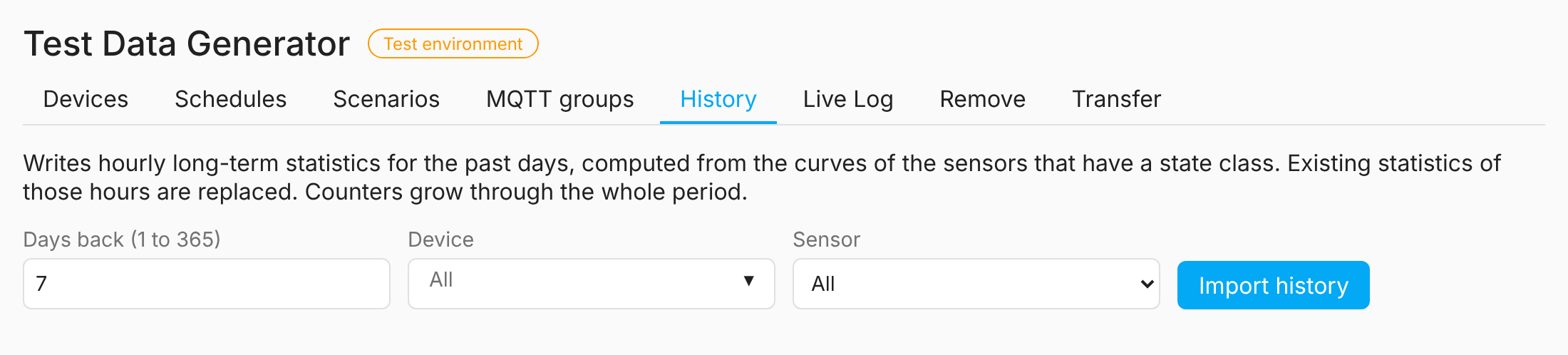
import_history(or the History tab) writes hourly long-term statistics for the last 1 to 365 days of the sensors that have a state class, computed from their curves (measurement: mean, minimum, maximum;totalandtotal_increasing: state and running sum). Counters grow through the whole period. Statistics of those hours that already exist are replaced; the current hour is left to the recorder. It needs the recorder, and a removal clears exactly the statistics that were imported. The state history is not backfilled.
🪞 Follow a real device and Live Log (1.2)
- Live Log tab (1.2): lists every state change of the generated entities while the tab is open, over all outputs (native, MQTT, Zigbee2MQTT): time, device, entity, old and new value, and the cause. It can be paused and cleared and saves the shown entries as a CSV or JSON file; nothing is stored, and closing the tab empties the log. The tab filters by text, device, entity, template, platform, output, cause and source, by a time window (the last 1 to 60 minutes) and by a minimum change for numbers, and has a switch for numeric values only; the filter is kept for the session. "Show in log" in the actions menu of a device opens the tab for that device. The WebSocket commands are
log/get,log/setandlog/clear; a ring buffer in memory holds the entries while a reader keeps asking. - Follow a real device (1.2, store version 4): the button "Follow device" in the Devices tab opens its own popup. Search a real device of your instance and take its entities (sensors, binary sensors, switches, lights; untick those you do not want; devices without such an entity cannot be chosen), so no template is needed. Set the deviation (offset, factor, noise, delay, dropout, decimals) and look at a preview of five copies before creating. A copy shows the converted value of its source entity with a deviation drawn from its seed, goes offline at once when the source is offline and comes back with it. The commands are
sources/list,sources/inspect,sources/deriveandsources/preview;devices/createtakes an optionalsource. - Copies of a source are locked like devices of the bundled templates: no curve or entity changes, only the seed, which you set per sensor in the details (or draw at random) with
devices/set_seed. Actions, schedules, scenarios and groups work on them; actions and faults on a copy whose source is offline are refused (TDC-SRC-007), so schedules and scenarios skip them and count them as failed. In the live view of a copy, the raw value of the source is drawn as a dashed line next to the curve of the copy. - The source is shown everywhere: a column with a badge (ok, offline, removed) in the device list, filters by source and by source state, the details (with the followed entity per entity), the pickers for actions, schedules and groups, the removal plan, and the live log (column and filter). When a source is removed, a banner asks "Remove N copies?" (
sources/removed,devices/confirm_source_removed). The transfer file (format 2) carries the source by the name of the source device with the mapping, the deviation and the seeds; on import the source is looked up by name, and a device whose source is not in this instance is created without it and reported (TDC-SRC-008). Files of format 1 still import. See docs/concept.md chapter 17.
📦 Transfer and removal
- Transfer tab: export and import devices, own templates, schedules, scenarios and groups (with MQTT) selectively. The export saves the chosen categories as one JSON file of definitions, with references written by name and without runtime values, credentials or markers; a device carries its seed and the overrides of its template, so noise and the other seeded curves match after an import. The import takes such a file: choose the categories and, per category, the mode (add keeps what exists, sync updates it and creates the rest, replace first removes all generated items of the category); a plan shows what would be created, updated, skipped, refused and removed before anything changes. Entries are matched by name (own templates by id); an entry that names a device, template or scenario that is neither in the file nor here is reported and skipped, and so is an existing device whose template or output differs. Imported devices form one run named
import <file name>. The commands aretransfer/plan,transfer/runandtransfer/export. See docs/concept.md chapter 16. - Everything that was generated can be removed again, completely, and nothing else is touched.
Version 1.2.1, requires Home Assistant 2026.9.0 or newer. The panel API version is 2, the store version is 4. Tried in a running test instance of Home Assistant with a Mosquitto broker; native Home Assistant groups are not created.
The integration creates devices over the native output and, with the MQTT integration set up, over MQTT discovery and in the Zigbee2MQTT format including groups (see the release plan in docs/concept.md).
What is new in each version
- 1.2.1: the README is easier to read (grouped, collapsible feature list, badges, screenshot table); no change to the integration itself.
- 1.2.0: the Live Log tab, and the source device: copies of a real device with seed based deviations, shown in the lists, details, filters, removal plan and log, with source support in the transfer file.
- 1.1.0: filter and sort the device, schedule, scenario and group lists, bulk actions, duplicating devices, pausing and resuming, keyboard shortcuts, live curves in the entity list, and a Transfer tab to export and import your data with seed and overrides. Panel API version 2:
devices/listno longer returns the curves, use the newdevices/get; the newdevices/namesserves the pickers with the key, name, platform, state class and curve shape of each entity. - 1.0.0 and earlier (since 0.3.0): own templates (saved, edited and deleted in the panel), an entity editor for custom devices, a curve preview that zooms in on short periods, unit suggestions from Home Assistant, statistics backfill, time lapse, CSV replay, and a reworked panel (popups to create and change devices, schedules, scenarios and MQTT groups, device details with the curve editor, targets of several devices with only the actions that all of them can do, protection of devices that are in use, and screenshots in this README).
| Service | Purpose |
|---|---|
hass_test_data_creator.create_devices |
Create devices from a template or custom entities |
hass_test_data_creator.fire_event |
Run an action on one entity of a test device |
hass_test_data_creator.remove |
Remove one device or one device set (all devices of one creation job) |
hass_test_data_creator.remove_all |
Remove everything the integration created |
hass_test_data_creator.add_schedule |
Run an action on devices at fixed, repeating or random times |
hass_test_data_creator.remove_schedule |
Delete a schedule (schedule_id) |
hass_test_data_creator.set_schedule_enabled |
Switch a schedule on or off |
hass_test_data_creator.add_scenario |
Store a named list of timed steps |
hass_test_data_creator.run_scenario |
Start a scenario (scenario_id) |
hass_test_data_creator.remove_scenario |
Delete a scenario (scenario_id) |
hass_test_data_creator.add_group |
Group Zigbee2MQTT devices (name, members by name or id) |
hass_test_data_creator.remove_group |
Delete a group (group_id) |
hass_test_data_creator.import_history |
Write hourly statistics for the past days (days, optional device and entity); returns series, rows and skipped |
action: hass_test_data_creator.create_devices
data:
  template: plug_metering
  count: 24
  name_pattern: "Plug {nn}"
  areas: ["Living room", "Kitchen", "Bedroom"]
Actions of fire_event per entity type: switch turn_on, turn_off, toggle; binary sensor set_on, set_off, pulse (optional duration_s); event press (optional event_type).
At most 500 devices per call, 2000 devices and 40 entities per device in total, 200 schedules, 100 scenarios and 100 groups (TDC-GEN-007 to TDC-GEN-009). Free-form fields are bounded: names and ids 128 characters, action parameters 2 KiB, a trigger 4 KiB, custom entities 64 KiB.
The target is one of device (id or name), template, run or all. The trigger has a type:
| Trigger | Fields | Example |
|---|---|---|
times |
times (HH:MM), optional weekdays (0 = Monday) |
{type: times, times: ["07:00", "17:30"]} |
interval |
every_s, optional start, end |
{type: interval, every_s: 600, start: "08:00", end: "20:00"} |
once |
at (local date and time) |
{type: once, at: "2026-11-02T18:30"} |
random_window |
count, start, end |
{type: random_window, count: 3, start: "18:00", end: "23:00"} |
poisson |
per_day (average) |
{type: poisson, per_day: 24} |
Faults are actions named fault_<kind> (for fire_event and schedules); params takes duration_s (1 to 86400 seconds) and the extras of the kind. A new fault replaces a running one on the same entity and ends by itself.
| Fault | Entities | Effect | Extra params (default duration) |
|---|---|---|---|
unavailable |
all | state unavailable |
– (60 s) |
dropout |
sensors | state unavailable, short |
– (10 s) |
frozen |
sensors | value stops changing | – (300 s) |
spike |
sensors | value times factor |
factor = 5 (30 s) |
battery_low |
sensors | value fixed at value |
value = 5 (3600 s) |
linkquality_drop |
sensors | value fixed at value |
value = 20 (600 s) |
late |
all, MQTT outputs only | state and event messages arrive delay_s seconds late, with the old payload |
delay_s = 30 (120 s) |
duplicate |
all, MQTT outputs only | every state and event message is sent copies more times |
copies = 1 (120 s) |
action: hass_test_data_creator.fire_event
data: { device: Plug 01, entity: power, action: fault_spike, params: { factor: 3, duration_s: 20 } }A scenario is stored once and then run by service or schedule; remove_all deletes the scenarios too:
action: hass_test_data_creator.add_scenario
data:
  name: Leaving home
  steps:
    - { target: { template: light }, entity: light, action: turn_off }
- { after_s: 30, target: { all: true }, entity: state, action: turn_off }action: hass_test_data_creator.add_schedule
data:
name: Evening toggles
target: { template: plug_metering }
entity: state
action: toggle
trigger: { type: random_window, count: 3, start: "18:00", end: "23:00" }Create them in the panel (see above), or put YAML files in <config>/hass_test_data_creator/templates/; the format is described in docs/concept.md chapter 4.2. Up to 200 files of at most 256 KiB are read; links, unreadable and invalid files (and files with !secret or !include) are skipped with a TDC-TPL-002 warning in the log, the others still load.
Read docs/development.md first. In short:
docker compose -f dev/docker-compose.yml up          # Home Assistant + Mosquitto for manual tests
docker compose -f dev/docker-compose.test.yml run --rm tests   # Python checks and tests (Linux container)
cd panel-src && npm ci && npm run build               # build the panel