





An htop-style terminal UI (TUI) to search, install, remove and upgrade packages from apt, snap, flatpak, Homebrew and MacPorts, in a single dashboard, without having to remember the syntax of any of them. pkgtui shows a tab for each package manager it finds on the system — Linux or macOS — so you only ever see the ones you actually have. See CHANGELOG.md for what's new.
 Searching an apt package, its dependency tree (
W), and the disk-usage metrics dashboard (M).
 Same flow on snap, including the channel picker (
c to cycle stable/candidate/beta/edge).
- One tab per package manager:
apt,snap,flatpak,brew(Homebrew) andmacports, each with its own state (the worlds are never mixed together). Only the ones actually installed get a tab, so a Fedora box or a Mac isn't cluttered with backends it can't use. - Live search: search packages by name/description (
apt-cache search,snap find,flatpak search,brew search,port search). - Local filter: narrow whatever list is currently on screen as you type — instant, no external query.
- Installed / Upgradable / Orphaned: dedicated views for what's on your
system, what has an update, and — for the backends that can answer it —
what nothing needs any more (
apt-get autoremove,brew autoremove,port echo leaves). - Package details: description, version, dependencies — including reverse dependencies, so you know what else relies on a package before you remove it — or publisher/channels for snap, remote and runtime for flatpak.
- Sort by installed size: find what's actually eating your disk.
- Mouse support: click a tab to switch backend, click a row to select it, scroll to navigate.
- Install/remove/upgrade with confirmation: every privileged action
asks for confirmation (
y/n) before running. - Live output, without losing the app: every package-manager command
runs in a real pseudo-terminal shown in a bordered box inside pkgtui — you
still get the genuine
sudopassword prompt and any interactive dpkg/debconf dialog, but the screen doesn't get handed over. The view stays up after the command finishes (green border on success, red on failure) until you press a key, so you can actually read the result. - Multi-select: tag several packages and install/remove them in one batch action.
- Upgrade all, with a preview:
Ufetches and shows exactly which packages will change before you confirm, instead of a blind "upgrade everything?". - Security updates called out: upgradable packages coming from a
-securityrepo get a distinct red marker, and the upgrade-all confirmation counts them separately. - Channel picker: install a snap from
stable,candidate,betaoredgeinstead of always defaulting to stable. - Hold/pin (apt, flatpak, brew): block a package from being touched by
upgrades (
apt-mark hold,flatpak mask,brew pin), with held packages marked[held]in the list. - Changelog viewer (apt): see what actually changed in a package
before upgrading it (
apt-get changelog). - Third-party sources (
P, apt and flatpak): list, add and remove apt PPAs and flatpak remotes from inside the TUI — each screen labelled in that backend's own words, with the exact command shown before it runs and gated behind an explicit warning, since a bad source can break updates for the whole system. Adding Flathub is one line here (flathub https://dl.flathub.org/repo/flathub.flatpakrepo, or just the.flatpakrepoURL and pkgtui names the remote after it). - Install a specific version, or downgrade (
V, apt): pick from every versionapt-cache madisonknows about across your configured repos, not just the one candidate apt would offer on its own — useful right after an upgrade turns out to be the one you wanted to avoid. - Revert (
V, snap): snap's own idiomatic undo — restores the previous revision's binary and its data/config, not just an older version number.
These go beyond wrapping package-manager commands — they answer questions none of these tools (nor any TUI wrapping them) normally surfaces on its own:
- Disk cleanup explorer (
K): old kernel packages apt's ownautoremovedeliberately leaves behind, leftover config files from already-removed packages (dpkg's "rc" state — never cleaned up automatically), disabled old snap revisions kept as a rollback safety net nobody ever revisits, Homebrew's cached downloads and superseded kegs, the inactive port versions MacPorts keeps after every upgrade, and the flatpak runtimes no installed app needs any more — for that last one the entry hands off toflatpak uninstall --unused, which knows the real answer and lists exactly what it removes before doing it, rather than pkgtui guessing at extensions and base runtimes from the outside. Shows total reclaimable space, purge one finding at a time with the same confirm-then-run flow as every other privileged action. - Dependency tree (
W): whether the selected package was explicitly asked for or only pulled in as a dependency, plus a navigable├──/└──tree of what currently depends on it, with a breadcrumb trail — drill into any reverse dependency to ask the same question about it, instead of pipingapt-cache rdepends,brew usesorport dependentsthrough your own head. - Backend overlap view (
O): packages installed through more than one backend at once (Canonical has, at times, silently substituted apt packages like Firefox with a snap "transitional" package — this is how you'd actually notice; the same app arriving from both apt and flatpak, or brew and MacPorts, is just as easy to end up with), and installed snaps that haven't been refreshed in 6+ months, using the snap's own on-disk file timestamp rather than any locale-dependent text. apt already flags upgradable packages; snap has no equivalent signal for "this has sat untouched for years," which real-world surveys of installed snaps have found is common. - Unattended-upgrades dashboard (
A, apt): whether silent background upgrades are even enabled, what the last automatic run actually touched, and when the next one is scheduled — normally visible only by digging through/var/log/unattended-upgrades/by hand. - Metrics dashboard (
M): installed packages ranked by disk usage as a bar chart, for every backend that can report a size — snap has no size column of its own insnap listand Homebrew has none anywhere, so pkgtui measures the installed revision's file (snap) or the keg directory (brew) itself. MacPorts reports no size at all, and says so rather than guessing. - Upgrade conflicts (
X, apt): packages a conservativeapt-get upgradewould leave behind because it needs to install or remove something else first — distinct from an explicit hold, which already has its own◆marker. "Upgrade all" (U) already resolves most of these on its own (it usesdist-upgrade); this is what tells you which ones and why. Also surfaces packages Ubuntu's phased update rollout is holding back from this machine, which show up as plainly "upgradable" everywhere else but that neither a plain upgrade nordist-upgradewill actually touch until the rollout reaches you. - Action log (
L): every privileged action run this session, all backends together, with a timestamp and success/failure — a running record of what you actually did, without digging through shell history.
- 11 built-in color themes: from classic terminal looks (Dracula,
Nord, Solarized, Gruvbox) to Catppuccin, Tokyo Night, Monokai, Darcula,
VS Code Dark+ and Ubuntu's own palette. Browse them with
←/→in the settings screen — the whole UI re-skins live as you move, no need to commit to one just to see it. - Rebind any action key, live, from inside the app — no config file editing required (though it's saved to one), with a one-key reset back to the defaults if a round of rebinding goes sideways.
- Remembers where you left off: backend and view are restored on the next launch.
No verification/store required: grab the asset from the releases
page and install it locally.
The .deb and .snap both register an application entry and icon, so
pkgtui shows up in your desktop's app launcher (opening in a terminal,
since it's a TUI) if you have one — a headless install just ignores it.
Below, <version> means the release number without a leading v (a
v0.1.1 tag produces pkgtui_0.1.1_amd64.deb, not pkgtui_v0.1.1_amd64.deb)
— check the exact asset names on the latest
release rather than
guessing. The commands use -f so curl fails loudly on a wrong URL instead
of silently saving GitHub's "not found" page as if it were the package.
curl -fLO https://github.com/padovanl/pkgtui/releases/latest/download/pkgtui_<version>_amd64.deb
sudo apt install ./pkgtui_<version>_amd64.debpkgtui needs to invoke apt/snap on the host system, so the package
uses classic confinement:
curl -fLO https://github.com/padovanl/pkgtui/releases/latest/download/pkgtui_<version>_amd64.snap
sudo snap install --dangerous --classic pkgtui_<version>_amd64.snapcurl -fLO https://github.com/padovanl/pkgtui/releases/latest/download/pkgtui_<version>_linux_amd64.tar.gz
tar -xzf pkgtui_<version>_linux_amd64.tar.gz
sudo mv pkgtui /usr/local/bin/brew tap padovanl/pkgtui https://github.com/padovanl/pkgtui
brew install --cask pkgtuiEvery release publishes a Homebrew cask, so brew upgrade --cask pkgtui
keeps it current like anything else you installed with brew. The explicit
URL in the tap line is needed because the tap lives in this repository
rather than a separate homebrew-pkgtui one — Homebrew only infers the
URL for repos named that way.
The cask covers Apple Silicon, Intel Macs and Linuxbrew, and clears the Gatekeeper quarantine attribute itself, which matters because these binaries aren't notarized. macOS still requires one manual approval on the very first launch, since the binary is unsigned — not required again after that:
-
Right after
brew install --cask pkgtuifinishes, macOS reports "pkgtui" Not Opened since the binary isn't notarized — click Done (not Move to Bin), it's already on yourPATH.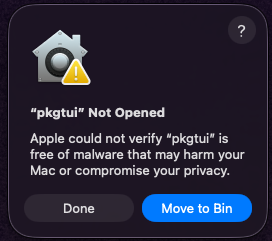
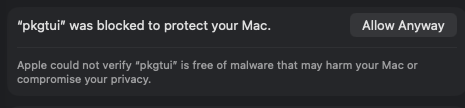
-
Open System Settings → Privacy & Security, scroll down to the note that "pkgtui" was blocked to protect your Mac, and click Allow Anyway.
-
Open a terminal and run
pkgtuiagain — an Open "pkgtui"? prompt appears, click Open Anyway, then enter your password when asked.pkgtuistarts normally from then on.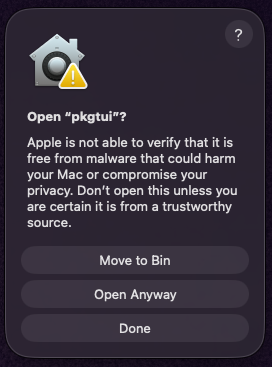
(Thanks to @Sk8teb0arder for walking through this and sharing the screenshots.)
Use darwin_arm64 on Apple Silicon, darwin_amd64 on Intel:
curl -fLO https://github.com/padovanl/pkgtui/releases/latest/download/pkgtui_<version>_darwin_arm64.tar.gz
tar -xzf pkgtui_<version>_darwin_arm64.tar.gz
sudo mv pkgtui /usr/local/bin/
curl doesn't set the quarantine attribute, so this works as is. If you
grabbed the archive with a browser instead, clear it with
xattr -d com.apple.quarantine /usr/local/bin/pkgtui — or just use the
cask above, which handles it for you.
git clone https://github.com/padovanl/pkgtui.git
cd pkgtui
go build -o pkgtui .
sudo mv pkgtui /usr/local/bin/pkgtui| Key | Action |
|---|---|
← / → |
Switch backend (one tab per package manager found) |
tab |
Switch view (Installed / Upgradable / Orphaned* / Search) |
/ |
Search the backend's full catalog (then enter to run it) |
f |
Filter the packages currently shown, live as you type (enter to keep it, esc to close without filtering) |
↑/↓, j/k |
Navigate the list (mouse wheel and clicks work too) |
enter |
Show details for the selected package |
space |
Tag/untag the selected package for a batch action |
i |
Install the selected package, or all tagged packages |
d |
Remove the selected package, or all tagged packages |
u |
Upgrade the selected package |
U |
Upgrade all packages (shows what will change first) |
S |
Sort the current view by installed size |
c |
Cycle the install channel (while confirming a snap install) |
H |
Hold/unhold the selected package (apt, flatpak, brew) |
C |
View the selected package's changelog (apt) |
P |
Manage third-party sources: PPAs (apt), remotes (flatpak) |
s |
Sync the cache (apt-get update, flatpak update --appstream, brew update, port selfupdate; no-op on snap) |
K |
Disk cleanup explorer: old kernels, leftover configs, disabled snap revisions, brew cache, inactive ports |
W |
Why is the selected package installed (manual vs. dependency, reverse-dep tree; apt, brew, macports) |
A |
Unattended-upgrades status (apt) |
O |
Backend overlap view: packages installed more than once, stale snaps |
V |
Install a specific version of the selected package / downgrade (apt); revert to the previous revision (snap) |
M |
Metrics dashboard: installed packages ranked by disk usage |
X |
Upgrade conflicts: packages a plain upgrade would keep back, or Ubuntu's phased rollout is holding back (apt) |
L |
Action log: what's run this session, and whether it succeeded |
y / n |
Confirm / cancel an action |
esc |
Go back |
, |
Open settings (theme, keybindings) |
? |
Toggle the in-app help screen (full keybinding list) |
ctrl+l |
Force a full screen redraw (fixes a stale/glitched display, same as in vim/bash/htop) |
q |
Quit |
* Orphaned appears for the backends that can answer the question: apt
(apt-get autoremove), Homebrew (brew autoremove) and MacPorts (port echo leaves).
All key bindings above except navigation and the y/n/esc confirm keys can be
remapped from the settings screen (,).
Actions that change the system (install, remove, upgrade) run with sudo
where the package manager expects it — apt, snap and MacPorts — and
deliberately without it for Homebrew (which refuses to run as root) and
flatpak (which asks polkit for authorization on its own). sudo is
skipped automatically if you're already root, e.g. inside a container.
Either way the command is
attached to a real pseudo-terminal, shown live in a box inside pkgtui.
Keystrokes go straight to the command, so the password prompt and any
interactive dpkg/debconf dialog work exactly as they would from the
command line — ctrl+c interrupts the running command rather than
pkgtui itself. The view stays open after the command finishes so you can
read the result; press any key to return.
Every package row starts with a status symbol, also shown as a legend right
under the header and in the ? help screen:
| Symbol | Meaning |
|---|---|
● |
Installed |
▲ |
Installed, upgrade available |
▲ (red) |
Installed, security update available |
○ |
Not installed |
◆ |
Held: upgrades blocked (H to toggle) |
Settings (theme, rebound keys) and the last-used view live in
~/.config/pkgtui/config.json, written by the settings screen (,) — there's
normally no need to edit it by hand, but it's plain JSON if you want to.
- At least one supported package manager:
apt/dpkg,snapd,flatpak, Homebrew or MacPorts. Having only some of them is the normal case — each one found gets a tab, the rest simply aren't shown. With none of them installed, every backend is listed and each says it isn't available, so the window still tells you what pkgtui supports. - Linux or macOS (Apple Silicon and Intel). Everything pkgtui does is shelling out to the package managers themselves, so there's nothing platform-specific beyond which of them exist on the machine.
sudoconfigured for the current user, for privileged operations with apt, snap and MacPorts. Homebrew and flatpak handle their own privileges and are never run throughsudo.- Go 1.24+ only if building from source (fetching Go modules needs internet; the compiled binary itself doesn't).
- Internet access for anything that reaches an actual package repository or catalog — search, install, upgrade, changelog. Browsing what's already installed or upgradable works fully offline. pkgtui makes no network calls of its own; this is exactly the same requirement the package managers have on their own.
- A terminal that reports 256-color or truecolor support. A bare
TERM=xterm(no-256colorsuffix) gets detected as a 16-color terminal, which downsamples every theme's colors to the nearest basic ANSI color and can make some of them hard to tell apart. Minimal Docker/SSH sessions are the usual culprit —export TERM=xterm-256color(orCOLORTERM=truecolorif the real terminal supports it) fixes it.
Pull requests are welcome — see CONTRIBUTING.md for the
branch policy, local setup, code style, and the release process. Short
version: open PRs against develop, not main, and run
gofmt -l . && go vet ./... && go test ./... before pushing.
MIT — see LICENSE.