Folder of my AutoHotkey scripts.
Only limited testing has been done on other systems (report problems in issues).
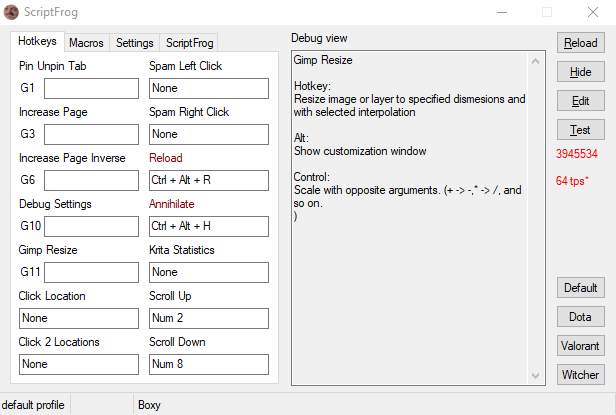
Settings Tab
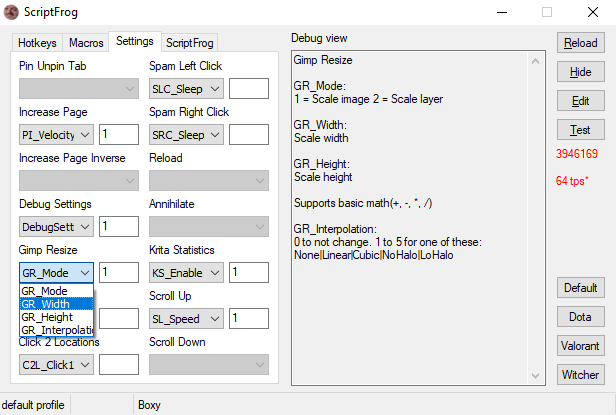
ScriptFrog includes a bunch of smaller scripts that you can hotkey.
Each of those scripts can have settings that you can edit in the Settings tab.
Supports exporting/importing your current hotkeys/settings.
Has profiles for a few select programs which are hardcoded (Default, Dota, Valorant, Tekken). You have to live with them or edit the code yourself!
Requires AutoHotkey v1.1.33 or newer (v1, not v2).
Open Macros → New, enter a name, optional hotkey and repeat count, then use Add step to build a routine. Select a step to edit its action/value, or use Move up, Move down and Remove. Save validates and saves the entire draft; Cancel discards it after confirmation. Edit, Duplicate and Delete manage existing macros. Duplicates start without a hotkey.
Click a macro in the list to set its hotkey. Click the hotkey box and press the shortcut, just like the controls on the Hotkeys tab, then Save. Clear removes a binding; Cancel leaves it unchanged. The editor also has a hotkey capture box. The key-name field supports special shortcuts such as Win combinations, F13–F24 and mouse buttons.
| Action | Value/example |
|---|---|
| Text | Literal text, including newlines and symbols such as ^!+#{} |
| Send | AutoHotkey key syntax, such as ^c, !{Tab} or {Enter} |
| Paste | Text to paste with Ctrl+V; the previous clipboard is restored after 200 ms unless changed elsewhere |
| Delay | Milliseconds, from 0 to 3600000 |
| KeyDown / KeyUp | One key name, such as Ctrl, Shift or LButton |
| KeyPress | One key plus its hold duration in milliseconds, e.g. Enter, 150; edit these in the key and duration fields |
| MouseMove | Separate X/Y fields and an origin selector: Screen, Active window, Active window content, or Current mouse position |
| Click | Choose a button, count (1–100), and hold duration in milliseconds, e.g. Left, 2, 100. Also supports Middle, X1, X2 and wheel directions. Scrolling has no hold duration; old values such as Left, 2 still work. |
Mouse coordinates are in pixels. Active window measures from the window's outer top-left corner, including the title bar; Active window content measures from its content area, excluding borders, title bar and menu. These modes use whichever window is active when the step runs. Current mouse position uses X/Y as movement offsets. Negative coordinates are supported. Existing X, Y, Screen and X, Y, Relative values remain compatible; the file format also accepts Window and Client.
Each step has clickable copy (overlapping squares) and delete (×) icons in its table row. Copy inserts an independent duplicate directly below that row. These controls work for both recorded and manually added steps.
Use Macros → Record to create a recording, or Record steps in an existing macro's editor to append one. The maximized recording view lets you choose keyboard presses, mouse buttons and scrolling, mouse movement, timing, and the coordinate origin. Choose Start recording, then focus the target app during the three-second countdown. The recording view hides and a small Stop panel remains visible; input continues to reach the target app.
- F9 or Stop and review stops recording and appends the captured steps to the draft.
- Ctrl+Alt+Escape or Discard cancels this recording and keeps the earlier draft unchanged.
- Ordinary pointer movement is combined into destinations with its elapsed time retained. Drag paths are sampled about every 30 ms while a recorded mouse button is held.
- Click positions are recorded even if continuous mouse movement is unchecked. Ordinary clicks become single Click rows; isolated key presses become KeyPress rows. Drag paths and overlapping holds retain down/up steps so their ordering is preserved.
- Press duration chooses the actual recorded hold time or fixed keyboard/mouse durations (initially 50 ms each). These settings are remembered in
Recording.ini. Each compact press row also has an editable Press duration (ms) field (0–3600000). Hold duration is separate from the pauses between actions; disabling those pauses still preserves recorded hold durations. Fixed durations apply to compact press rows; drag and overlapping-hold timing stays as recorded. - Recording pauses ScriptFrog's other hotkeys and profile detection, restoring them when capture ends. The stop shortcuts and recorder controls are excluded from recorded actions.
- Recording stops at the draft's 500-step limit or after ten minutes. Held keys receive release steps. Review, delete, duplicate or edit the resulting table rows, then Save.
Screen coordinates work best for recordings spanning several windows. Window/content coordinates are useful for routines within the active target window. Keyboard recordings replay key presses using the current keyboard layout; they are not literal-text transcriptions.
Hotkeys use ^ Ctrl, ! Alt, + Shift and # Win: for example ^!F6, F13 or XButton1. Clear the hotkey for a manual-only macro, or uncheck Enable hotkey to disable its binding. Run plays the selected macro after a three-second countdown; focus the destination window during the countdown. Playback stops if ScriptFrog itself has focus when a step is due. Hotkey-triggered playback waits for the trigger and modifiers to be released.
Use Stop or Ctrl+Alt+Escape to cancel. Playback runs one macro at a time, repeats 1–10000 times, and releases keys held by KeyDown at the end of each repetition or on cancellation. Use KeyDown/KeyUp for held keys; Send steps do not accept explicit holds or repetition counts. A macro can contain up to 500 steps, with up to 16000 characters per value.
Check Global (all profiles) in the hotkey dialog or editor to make a macro available everywhere. A global macro has one shared definition: editing its steps or hotkey in any profile updates it everywhere, and deleting it removes it everywhere. Unchecking Global makes it local to the profile you are currently viewing. Global macros are marked Global in the list; their names and enabled hotkeys must be free in every profile.
Local macros belong to the current profile and follow automatic/manual profile switching. Switching profiles stops playback and swaps macro bindings, including the shared global macros. The editor and hotkey dialog keep the current profile while open. Keys already used by scripts or enabled macros cannot be assigned to another macro, including modifier variants of the same base key. Conflicting bindings found on profile load show Key conflict and remain inactive; the routine remains available through Run.
Changes save immediately to v1/ScriptFrog/Macros.sfmacros, a local file excluded from Git (up to 1000 macros and 4 MB). Export exports the current profile and its shared global macros. Import merges all routines from an export into the current profile, preserving their global flags; duplicate names, conflicting keys or invalid data reject the entire import. Existing files without a global flag continue to load as local macros. Export files contain macro data, not executable AutoHotkey code. Back up this file to preserve macros independently of hotkeys/settings exports.
Run the isolated regression suite with:
& 'C:\Program Files\AutoHotkey\AutoHotkeyU64.exe' /ErrorStdOut 'v1\ScriptFrog\tests\Macros.test.ahk'
& 'C:\Program Files\AutoHotkey\AutoHotkeyU64.exe' /ErrorStdOut 'v1\ScriptFrog\tests\RecorderCallbacks.test.ahk'
Adding you own scripts
Each variable is defined for a script like HotkeyAllowModifiers[SC] := <value>.
Scripts are usually under v1/ScriptFrog/Scripts but this is not needed. #Include the script you made in the start of ScriptFrog.ahk (where all the other ones are included).
Subroutes are called as <HotkeySub>_<SubRoute> (eg. MYSCRIPT_Load, MYSCRIPT_Ctrl, MYSCRIPT).
The <HotkeySub> label is called when an assigned hotkey is pressed without modifiers.
If you enable HotkeyShift (HotkeyShift[SC] := 1), the \<HotkeySub\>\_Shift label is called when the user triggers the script while pressing shift.
; Required
HotkeyName := [],                   ;Displayed name of the hotkey. Must be a valid variable name. "_" is displayed as a space
HotkeySub := [],                    ;Subroute prefix (_ is added to the end)
HotkeyDescription := [],            ;Description of what each hotkeys do / any text

; Optional
HotkeySettings := [],               ;Comma separated list of settings that will be shown in the Settings tab
HotkeySettingsDescription := [],    ;Description of what all the settings do / any text
HotkeyGlobal := [],                 ;Defines if the hotkey will be globally active
HotkeyAllowModifiers := [],         ;Defines if the hotkey allows modifiers in its hotkey
HotkeyDisableMain[]                 ;Defines if the hotkey's main       subroute is NOT active (Executed when hotkey is pressed without modifiers)
HotkeyAny := [],                    ;Defines if the hotkey's Any        subroute is active (Disables modifier subroutes. Executed when hotkey is pressed with any or no modifiers)
HotkeyCtrl := [],                   ;Defines if the hotkey's Ctrl       subroute is active
HotkeyAlt := [],                    ;Defines if the hotkey's Alt        subroute is active
HotkeyShift := [],                  ;Defines if the hotkey's Shift      subroute is active
HotkeyCtrlAlt := [],                ;Defines if the hotkey's CtrlAlt    subroute is active
HotkeyCtrlShift := [],              ;Defines if the hotkey's CtrlShift  subroute is active
HotkeyAltShift := [],               ;Defines if the hotkey's AltShift   subroute is active
HotkeyCtrlAltShift := [],           ;Defines if the hotkey's CtrlAltShift  subroute is active
HotkeyTick := [],                   ;Defines if the hotkey's Tick       subroute is active  Executed on each tick
Here is how the Annihilate script is done.
GoTo AN_End after variables and AN_End: at the end is required for each script. (Prevents main script from stopping when including these scripts)
SC++
HotkeyName[SC] := "Annihilate"
HotkeySub[SC] := "AN"
HotkeyDescription[SC] := "Hotkey:`nKill the script immediately`n`nThis hotkey will be active in all profiles"
HotkeyGlobal[SC] := 1
HotkeyAllowModifiers[SC] := 1
GoTo AN_End

AN_Load:
Return

AN:
GoTo Terminate
Return

AN_End:
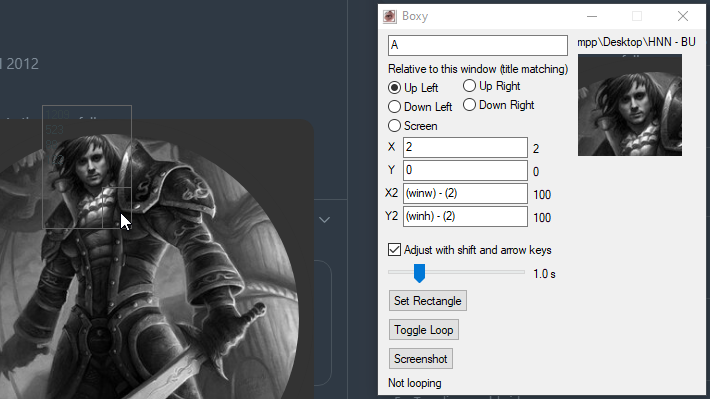
Boxy is a snipping tool with Gimp box select style control (ctrl-,alt-,shift drag) + math controlling.
Boxy consists of 2 windows or GUIS:
Main GUI which has settings for and shows your previous screenshot.
Has controls for box X,Y,X2,Y2 values which can use basic math and variables available to the script.
These values are relative to the screen or a window you can choose using WinTitle parameter format.
Frame GUI which is a resizeable box that shows the area you would screenshot.
This gui can be resized by dragging one of the boxes that appear when you hover near the edges, or moved with the middle box.
Alt: Restricts the box to 1:1 ratio.
Shift: Restricts the box to the original ratio.
Ctrl: Restricts the box center to the original center.

Ignore Windows
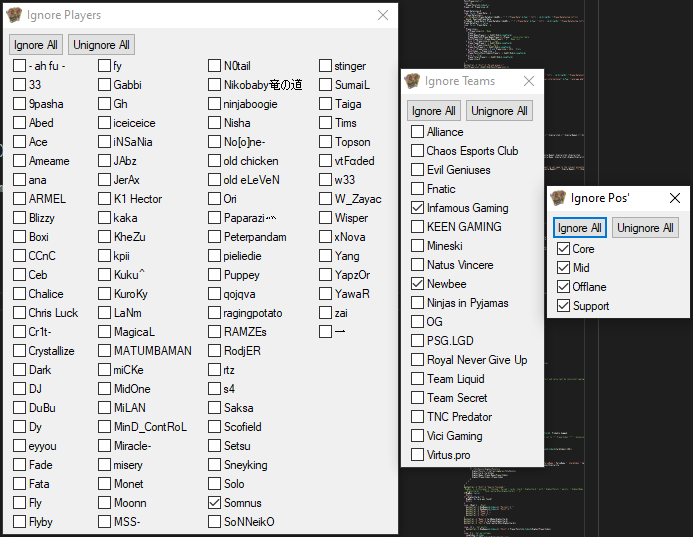
Allows you to find your best (highest score) Dota 2 Fantasy cards for the current International.
Supports searching by player/team/position.
Each player/team/position can be ignored invidually.
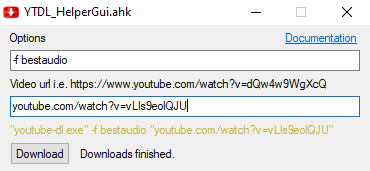
YoutubeDL/YTDL_HelperGui.ahk is a simple host for youtube-dl.exe. Youtube-dl
Used to queue downloads of videos/audio.
Supports setting the command line arguments for youtube-dl.exe.
Preview
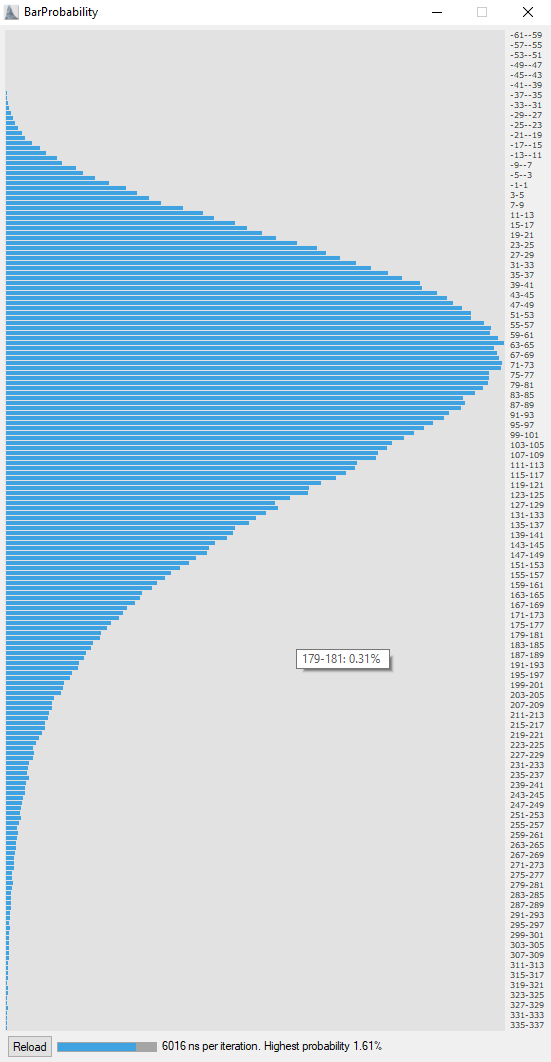
BarMan/BarProbability.ahk
Customizeable script which is used to display chances of a specific number output from an algorithm.
All customization inside the script (good luck).
Preview

LaunchPad
Gui for opening the above scripts. (On my taskbar for quick access)