Below, in more detail, are various Command Prompt commands that will allow you to:
- Provide for Over The Ethernet (OTE) updates
- Test for NTP responses
- Reset the Meinberg drift file (to recreate a new baseline for the use of a different time server)
In the examples below:
- The device name,
ESP32TimeServer, is set asHostNameinESP32TimeServerSettings.h. x.x.x.xis the IP address of the ESP32-P4 running the ESP32 time server software.
Here are a couple example command line commands which may be used, following a
build, to provide for an Over The Ethernet (OTE) update. The path name which
precedes ESP32TimeServer.bin may vary depending on your ESP32-P4 chip version.
For more information, please see the README.md file, Setup Step 3 - Build.
python tools\ote_upload.py -i ESP32TimeServer.local -p 3232 -f build_s31\ESP32TimeServer.binor
python tools\ote_upload.py -i x.x.x.x -p 3232 -f build_s31\ESP32TimeServer.binNotes:
-
build directories are: | Chip revision | Profile | Build directory | | ------------------------------ | -------- | --------------- | | P4 before v3.0 |
pre_v3|build_pre_v3| | P4 v3.0 |v3_0|build_v3_0| | P4 v3.1 or later |v3_1|build_v3_1| | ESP32-S31 Function CoreBoard 1 |s31|build_s31| -
These commands prompt for the running device's OTE password. Native updates use unencrypted HTTP on TCP port 3232; use a trusted LAN or VPN only.
-
The OTE will appear to completed from the command line sooner than will be actually the case (despite the message that says 'restarting in 5 seconds'). If you have an LCD on the ESP32TimeServer you will be able to see its progress as it continues the update process, if not the update should complete within the next 30 seconds after which time the ESP32TimeServer will auto reboot.
-
For a device still running ArduinoOTA, use
tools\espota.pyonce to install the native firmware, or flash by USB. See native OTE for the legacy migration command and IPv6 examples.
Here is a command which may be used for sending a NTP test request on Linux or Windows (with the Meinberg Network Time Protocol Daemon service for Windows installed and running):
ntpdate -q ESP32TimeServer.localor
ntpdate -q x.x.x.xWith the output showing, for example:
28 Aug 10:46:21 ntpdate[51120]: Raised to realtime priority class
server 192.168.7.24, stratum 1, offset +0.006410, delay 0.04124
28 Aug 10:46:24 ntpdate[51120]: adjust time server 192.168.7.24 offset +0.006410 sec
The stratum 1 value indicates that the server is a Stratum 1 time source
(directly connected to a reference clock, in this case GNSS). The offset value
is the clock offset between the machine issuing the command and the
ESP32TimeServer.local device (in the case above approximately 6/1000's of a
second). The delay value is the round-trip network delay.
If you are using Windows and running the default Windows Time service, here is a command which may be used for sending NTP test requests (will not work if you are not using Windows or using the Meinberg Network Time Protocol Daemon service for Windows):
w32tm /stripchart /computer:ESP32TimeServer.local /samples:5 /dataonlyor
w32tm /stripchart /computer:x.x.x.x /samples:5 /dataonlyWith the output showing, for example:
Tracking 192.168.7.24 [192.168.7.24:123].
Collecting 5 samples.
The current time is 2026-08-24 8:23:44 AM.
08:23:44, +00.0022650s
08:23:46, +00.0016820s
08:23:48, +00.0016135s
08:23:50, +00.0017035s
08:23:52, +00.0018610s
The first number above is the current time. The second number above is the clock
offset between the machine issuing the command and the ESP32TimeServer.local
device (in the case above approximately 2/1000's of a second).
If you are using MacOS, here is a command which may be used for sending an NTP
test request (the sntp utility is included with MacOS by default):
sntp -d ESP32TimeServer.localor
sntp -d x.x.x.xWith the output showing, for example:
sntp 4.2.8p15@1.37-o
request 2026-08-24T08:24:01
rec:1715006401.000000 frac:0.000000000
refid: .GNSS.
leap: 0 stratum: 1 rootdelay: 0.000000
response from ESP32TimeServer.local: offset 0.002154, delay 0.040680
The offset value shown above is the clock offset between the machine issuing the
command and the ESP32TimeServer.local device (in the case above approximately
2/1000's of a second).
If you are using the Meinberg NTP Time Server and you want to create a new baseline as you are now using a new time server, then from the Windows Command Prompt with Administrative Privileges you can use these commands:
net stop ntp
del "C:\Program Files (x86)\NTP\etc\ntp.drift"
net start ntp
Between 15 minutes to an hour later a new ntp.drift file will be created by
the service.
If you don't do this the Meinberg software will automatically recalibrate the drift file within a few hours.
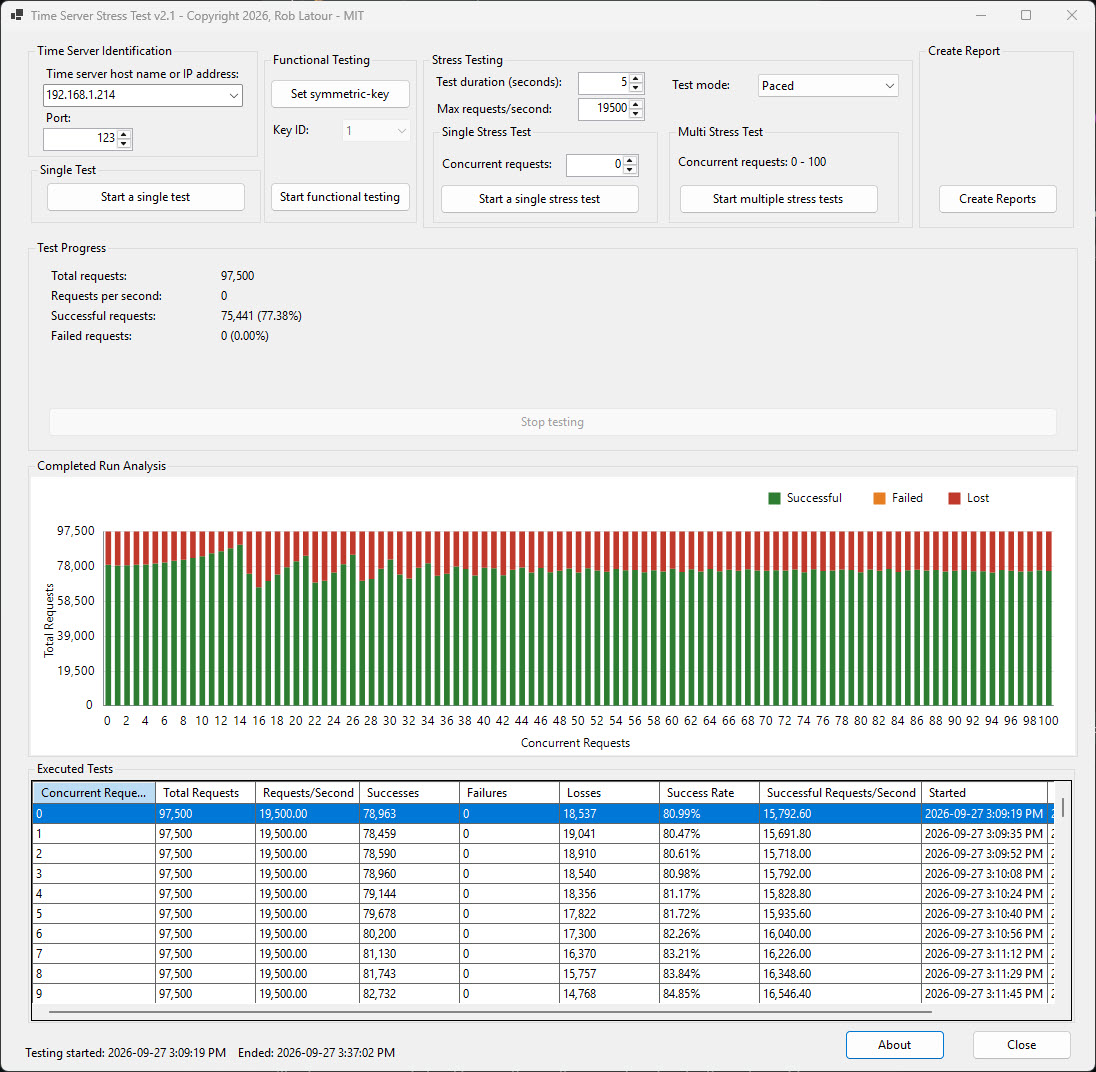
Here is an open source Windows app, written by me, which can be used to stress test your NTP server.